Best HEIC to JPG Converters in 2026: the buyer's shortlist

By Thien · Maker of ToAny
Published
The best HEIC to JPG converter depends on whether you will accept an upload. We ranked eight options on seven measurable criteria. ToAny comes first because it converts in the browser, so the photo never leaves your device, and it is free with no account. It loses on EXIF handling and batch size, and we say so. Every number below comes from the vendors' own pages, read on 17 October 2026.
Have a HEIC photo open right now? ToAny's free HEIC to JPG converter does the job in your browser tab, with no account and no upload. Open the HEIC to JPG converter
Key Takeaways
- Where the file is processed is the criterion that separates this list. ToAny converts in the browser, iMazing and NCH run as desktop apps, four of the others (HEICtoJPG.com, Ezgif, CloudConvert and FreeConvert) upload your photo to a server, and Apowersoft does not say clearly.
- Upload tools differ a lot on how long they keep the file. Ezgif states 1 hour, FreeConvert 8 hours, CloudConvert 24 hours at the latest and HEICtoJPG.com 48 hours in its terms.
- ToAny does not copy EXIF or GPS data into the JPG and has no option to keep it. If you need the metadata, pick iMazing, which can keep or strip it, or Apowersoft, which keeps it by default.
- For a very large batch in a browser, HEICtoJPG.com states up to 200 photos per batch, while ToAny says only that you can add several at once. Both are free, but HEICtoJPG.com uploads your photos and its terms prohibit commercial use.
- Read the licence if the photos are for work. NCH's free version is for home use only, HEICtoJPG.com's terms prohibit commercial use, and CloudConvert's free plan is for personal use.
What HEIC to JPG converters actually are (and what they are not)
A HEIC to JPG converter reads a photo saved in Apple's HEIC format and writes a copy as a JPG, the format that nearly every browser, phone, printer and upload form accepts. HEIC is what iPhones have saved photos as since iOS 11 because it stores the same picture in roughly half the space of a JPG.
A converter makes a new file. It does not edit the original, and it does not turn a HEIC into something better than it was. JPG is a lossy format, so a small amount of detail is traded for compatibility, and the JPG is usually larger than the HEIC, often about double.
Converters differ in where the work happens. A browser converter decodes the photo on your own device. A desktop app does the same after an install. An upload converter sends the photo to the vendor's server, converts it there and lets you download the result, so the vendor holds a copy for a while. That difference matters more than speed or price when the photos are personal.
If you want the wider picture first, ToAny has a general HEIC converter page. A converter is not a photo editor, a backup tool or a way to recover a damaged file. It is also not a way to keep a Live Photo's motion: iOS stores that as a separate video, so a HEIC file only ever contains the still. Finally, a converter does not decide whether your metadata survives. Some tools copy EXIF data such as camera model and location into the JPG, some strip it, and some let you choose, so check that setting before you send the files to anyone.
How We Ranked These HEIC to JPG Converters
We shortlisted eight HEIC to JPG converters and ranked them on seven criteria that can be checked on the vendor's own pages. We did not use customer stories, and where a page does not state a value we write that it is not stated.
The order is the ranking. ToAny is ranked first on privacy by design, price and ease of use. The table shows where it loses.
- Criterion 1Where the file is processedBrowser, uploaded, desktop app, or stated ambiguously
- Criterion 2PriceFree, or the cheapest paid price as displayed
- Criterion 3Batch or daily limitPhotos per batch, per session or per day on the free tier
- Criterion 4Free max file sizeLargest single file on the free tier
- Criterion 5File retention on the vendor serverHours files stay on the server
- Criterion 6EXIF metadata handlingKeep, strip or user choice
- Criterion 7Commercial use allowedAs stated in the vendor terms
The Best HEIC to JPG Converters in 2026
Here are the eight converters in ranking order. Each section gives what the vendor states, the figures we could verify and the weak spots. Facts under each entry link to the page we read them on. Where a figure is missing, the vendor does not state it.
1. ToAny, best for private, in-browser batch conversion
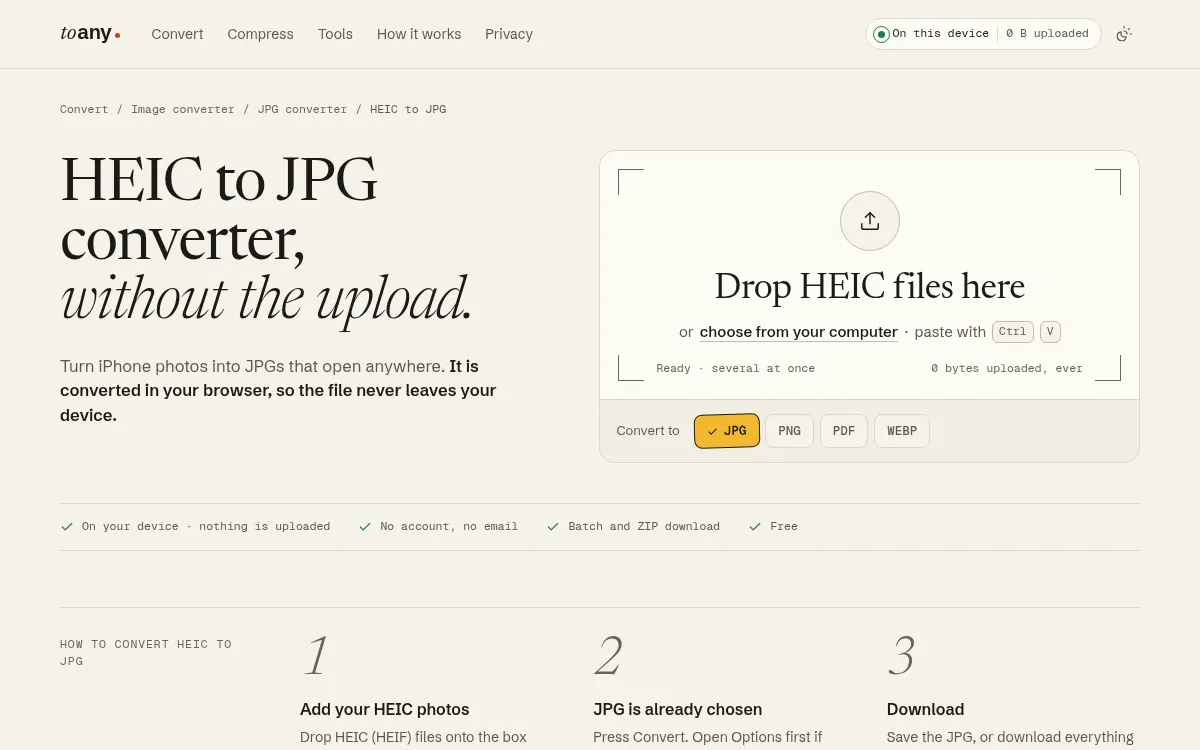
ToAny converts HEIC to JPG inside the browser tab. The file's contents, name and size are not sent to ToAny or to anyone else, and the page keeps a running count of bytes uploaded that you can check against your browser's Network panel. There is no account, no email address and no watermark.
You can add several files at once and download them together as a ZIP. Under Options you can set the quality, aim for a target file size, resize the result and choose the colour that fills transparent areas. ToAny reads the first bytes of a file rather than trusting its name, so a HEIC renamed .jpg is still recognised.
It has real weak spots. Camera metadata such as EXIF and GPS location is not copied into the JPG, and there is no option to keep it, so iMazing and Apowersoft are better if you need it. The page says several at once without a number, while HEICtoJPG.com states 200 photos per batch. There is no desktop app, no API and no cloud-storage import. Very large files are limited by your device's memory.
Most browsers other than Safari download a HEIC decoder of about 0.2 MB the first time and keep it in the cache. ToAny is free, and its terms say it may show advertising; none is shown at the time of writing. It went live on 5 October 2026, so it has no review scores to quote.
The same site covers 190 formats and 1,195 pairs, including HEIC to PNG, HEIC to WebP and HEIC to PDF. A small number of those pairs (16) run on ToAny's server, and only after you consent for each upload. HEIC to JPG is not one of them.
- Price
- Free, no account, no email, no sign-up toany.io
- Processing
- In the browser; the file is not sent to ToAny or anyone else toany.io
- Batch
- Several files at once, downloaded as a ZIP; no number stated toany.io
- EXIF and GPS
- Not copied into the JPG toany.io
- Scale
- 190 formats, 1,195 pairs toany.io
- Server pairs
- 16, each only after per-upload consent toany.io
Best suited for: ToAny suits anyone who wants iPhone photos as JPGs without handing them to a third party, on any device with a current browser. It is a weaker fit if you need EXIF data kept, a stated batch size or an API.
2. iMazing Converter, best for a free desktop app with metadata control
iMazing Converter is a small desktop app for Mac and PC that converts HEIC to JPG and PNG, and HEVC (H.265) video to MP4 (H.264). The page describes it as 100% free, states no limits and lists no paid plan for the Converter.
It gives the most control over what ends up in the JPG. You can adjust resolution and quality, keep or strip EXIF data, and use colour profiles, including wide-gamut ones. You can drag in files or whole folders. That matters if you sort photos by date or place afterwards, or if you are sending pictures to a printer and want the colour to survive.
Processing is local to your Mac or PC. That statement comes from iMazing's About page, and the Converter page itself does not repeat it. The company behind the app, DigiDNA, was incorporated in 2008 and is based in Geneva, Switzerland. The website is offered in 12 languages, although we could not confirm the app languages.
The cost is the install. You have to download and run an app, which rules it out on a locked work laptop, a Chromebook or a phone. It offers three conversions in all, so it is not a general file converter. We found no stated rule on commercial use, so read the licence if you are converting client photos. Of the eight, it is the best choice for people who care about metadata and colour more than convenience.
- Price
- Free (no paid plan listed for the Converter) imazing.com
- Platforms
- Mac and PC (Windows) desktop app imazing.com
- EXIF
- Keep or strip; colour profiles including wide-gamut imazing.com
- Conversions
- HEIC to JPG, HEIC to PNG, HEVC (H.265) to AVC/MP4 (H.264) imazing.com
- Processing
- Local on the user's Mac or PC imazing.com
- Founded
- 2008 (DigiDNA incorporated), Geneva, Switzerland imazing.com
Best suited for: iMazing suits Mac and Windows users who convert on their own computer and want to choose whether EXIF data and colour profiles are kept. It does not suit anyone who needs to convert on a phone or a computer where they cannot install software.
3. HEICtoJPG.com, best for large browser batches with optimised output
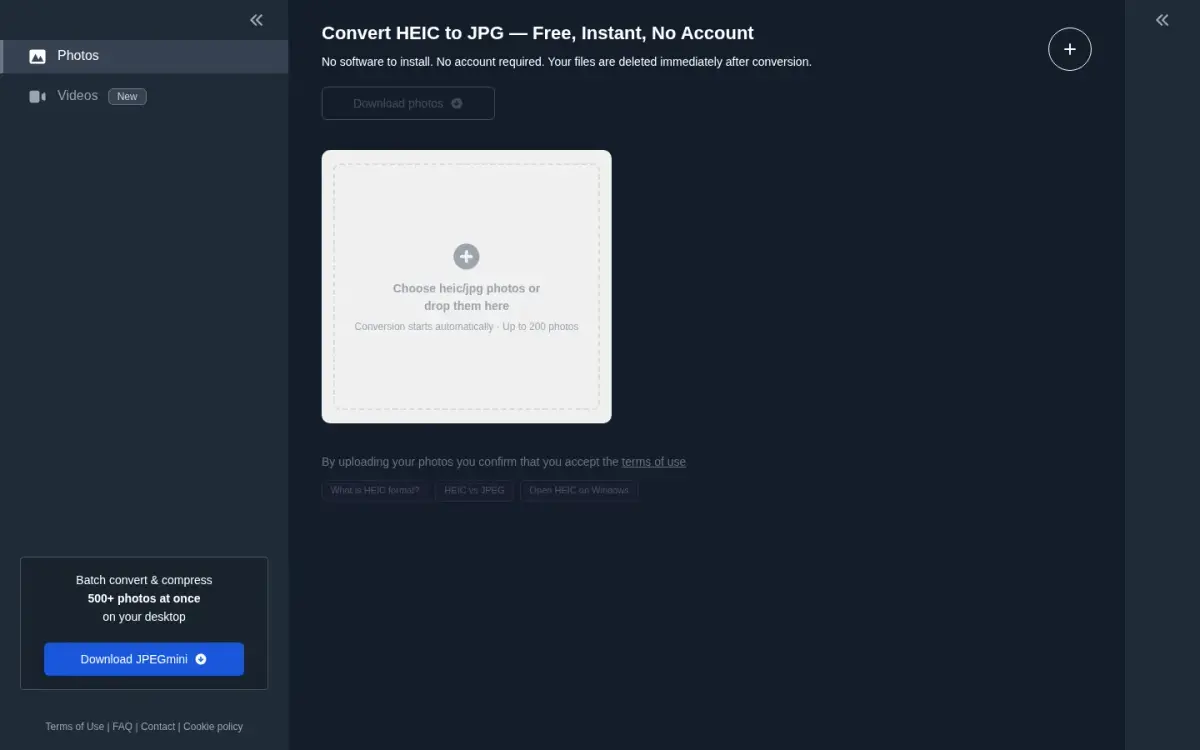
HEICtoJPG.com is a single-purpose web converter. It is free (0 USD), needs no account and states no watermark. The drop zone says conversion starts automatically and accepts up to 200 photos at a time, which is the largest stated batch of any browser tool here. No daily cap is stated on the pages we read.
The output is optimised with JPEGmini, so the JPGs come out smaller than a plain conversion. That helps if you are emailing or uploading a lot of photos. The site also promotes the JPEGmini desktop app for 500+ photos at once, which is a separate product.
The privacy position needs care. The terms state that files are uploaded to and processed on Beamr's systems, and that content is removed within 48 hours of upload. The homepage says the files are deleted immediately after conversion, which conflicts with the 48-hour figure. The FAQ adds that Beamr may use content internally to improve the service. The page also carries a Google AdSense script.
The terms prohibit commercial use of the service, although the homepage markets it to photography and real estate professionals. The site is operated by Beamr Imaging Ltd., with courts in Tel Aviv-Yaffo. We found no stated EXIF option and no stated maximum file size.
If you need to push a couple of hundred photos through a browser and accept an upload, it is the strongest option on batch size. If the photos are sensitive or the work is commercial, look further down the list or at ToAny.
- Price
- Free (0 USD) heictojpg.com
- Batch
- Up to 200 photos per batch; no daily cap stated on the pages read heictojpg.com
- Processing
- Server-side: files are uploaded to and processed on Beamr's systems heictojpg.com
- Retention
- Removed within 48 hours of upload (terms); homepage says immediate deletion heictojpg.com
- Commercial use
- Terms prohibit commercial use of the service heictojpg.com
- Output
- JPEGs auto-optimised with JPEGmini, smaller than a plain conversion heictojpg.com
Best suited for: HEICtoJPG.com suits people with a large, non-sensitive batch who are happy to upload and want smaller JPGs. It does not suit commercial work, because the terms prohibit it, or anyone who needs a clear deletion promise.
4. Ezgif, best for quick one-off web conversions
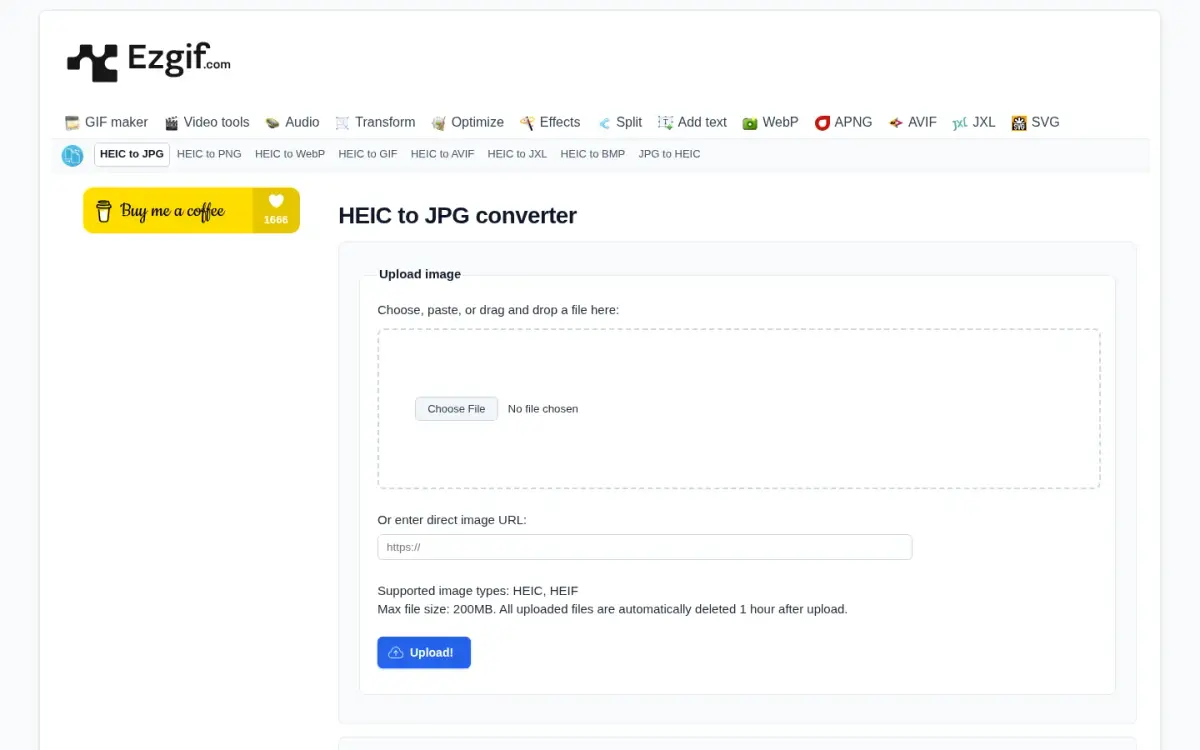
Ezgif is a long-running set of web image tools, and its HEIC to JPG page is a plain upload form. It is free, we found no paid plan, and no account or watermark is involved. The page states a maximum file size of 200MB and says there are no limits on use.
You can add a file by upload, paste, drag and drop, or a direct image URL. The last option is useful if the photo is already online. The JPG quality runs from 0 to 100 with a default of 90, and you can set a background colour for transparent areas. HEIC and HEIF are accepted, and sibling pages output PNG, WebP, GIF, AVIF, JXL and BMP.
This one is an upload tool. The privacy policy confirms that files go to Ezgif's servers rather than being handled in the browser, and the page says uploaded files are deleted automatically 1 hour after upload. That is the shortest retention of the upload tools in this list. The site serves advertisements and shows a Buy Me A Coffee link.
The weak spots are batch handling and metadata. The page states no batch size, and we found no statement on whether EXIF data is kept. It does not say anything about commercial use either.
The same developer lists ezavif.com, which runs locally in the browser, but that is a separate site and not the HEIC tool reviewed here.
- Price
- Free; no paid plan found ezgif.com
- Max file size
- 200MB ezgif.com
- Processing
- Server-side upload to Ezgif servers ezgif.com
- Retention
- Deleted automatically 1 hour after upload ezgif.com
- Quality control
- JPG quality 0-100 (default 90) and background colour ezgif.com
- Ads
- Yes, serves advertisements ezgif.com
Best suited for: Ezgif suits someone converting a single large photo who wants a quality setting and a stated one-hour deletion. It does not suit large batches or anyone who needs to control EXIF data.
5. CloudConvert, best for developers who want a conversion API
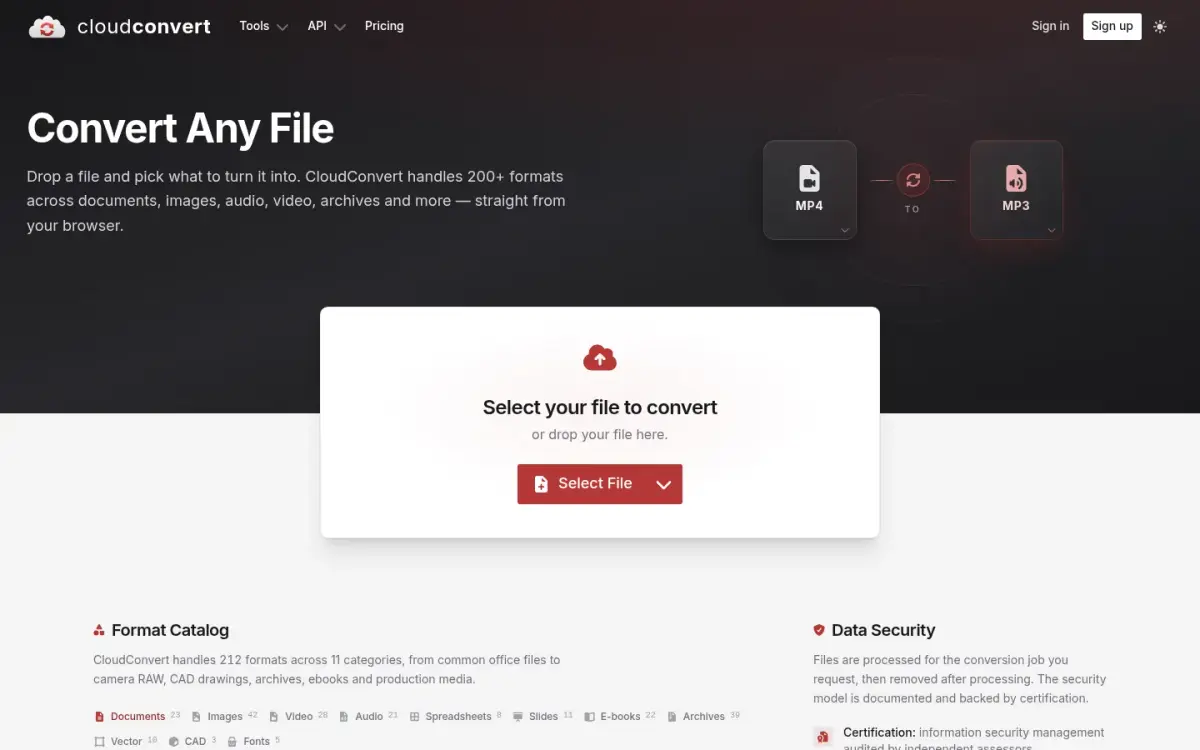
CloudConvert is a general converter that handles 212 formats across 11 categories, HEIC to JPG among them. It was founded in 2012 and is made by Lunaweb GmbH in Germany. The company states 10,000+ active customers and says 90% of files are processed through its REST API, which makes it as much a developer tool as a consumer one. FreeConvert also lists a REST API.
The free plan costs EUR 0 and gives 10 conversion credits a day, with a daily reset, for personal use. The maximum file size on the free plan is 1 GB. Free users are limited to 5 minutes of processing time and 5 concurrent tasks, and they get low processing priority. Credits work out at about 1 credit per minute of conversion time, with a minimum of 1 for general conversions. We could not read the paid amounts, because the pricing page renders them with JavaScript.
The upload goes to a server. The privacy policy says selected files are transferred to and temporarily stored on CloudConvert's servers, and that they are deleted after 24 hours at the latest or sooner if you press delete. The security page says files are kept only for processing and deleted immediately afterwards, and that the company's ISMS is ISO 27001 certified by TÜV Süd. It says it does not read or mine file data.
Trustpilot shows 4.0 from 74 reviews on its nl-be page, and the count moves over time. Registration is optional under the privacy policy, but we could not confirm the anonymous limit.
For a single HEIC photo it is more machinery than you need, and it has no stated EXIF option. For an automated pipeline, it is a strong choice in this list, alongside FreeConvert's API.
- Free plan
- EUR 0, 10 conversion credits per day (daily reset), for personal use cloudconvert.com
- Max file size
- 1 GB on Free cloudconvert.com
- Retention
- Deleted automatically after 24 hours at the latest cloudconvert.com
- Formats
- 212 formats across 11 categories cloudconvert.com
- Customers
- 10,000+ active customers; founded 2012 cloudconvert.com
- Trustpilot
- 4.0 from 74 reviews (nl-be page; counts move over time) nl-be.trustpilot.com
Best suited for: CloudConvert suits developers who want a REST API and people who convert a mix of file types and accept an upload. It is a heavy choice for a quick HEIC photo, and the free plan is for personal use.
6. FreeConvert, best for large files without an account
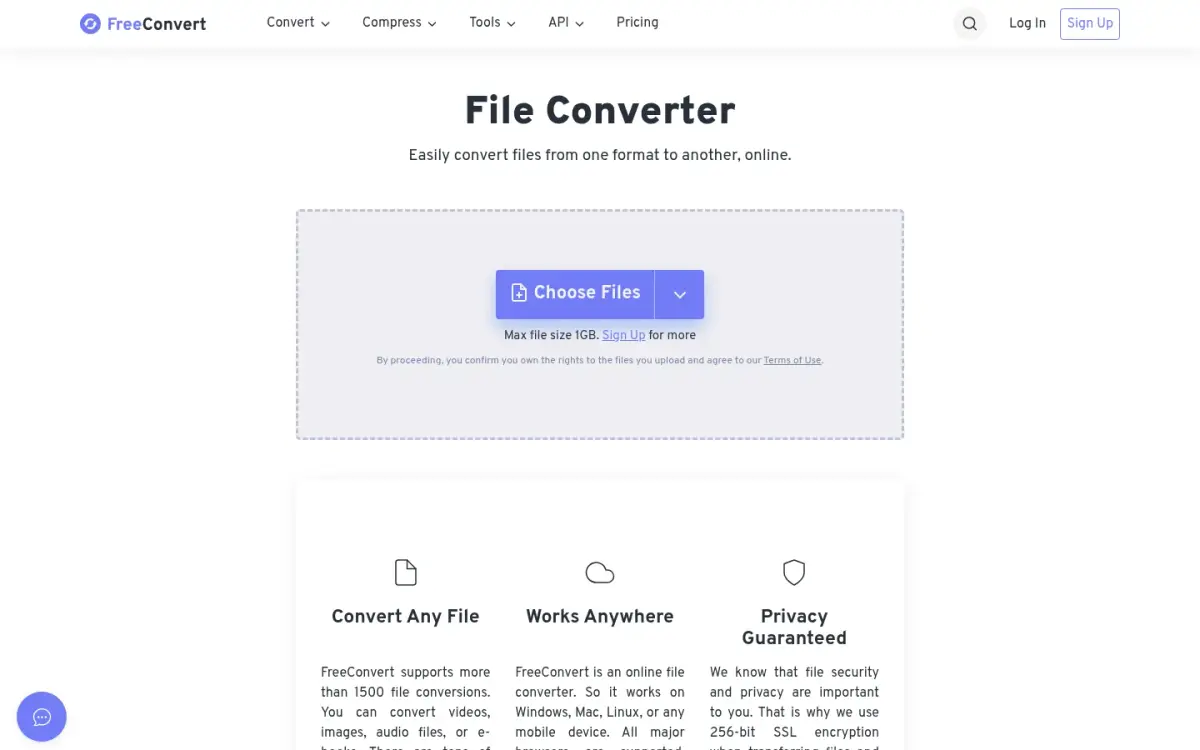
FreeConvert is a large web converter with more than 1500 file conversions on its homepage, including HEIC to JPG, and a REST API. It launched in 2018, grew out of ImageResizer.com and lists 15 interface languages. On its about page it claims 11M+ monthly visitors and 2M+ files processed every day.
Free use needs no account on the website. The homepage converter accepts files up to 1 GB, and the free allowance is 20 conversion minutes a day, which the pricing page translates to up to 20 files a day for most users. Each file gets 5 conversion minutes. The free tier appears to carry ads and a queue, because paid plans list No Ads.
Paid plans start at $12.99/month for Basic, with 1,500 conversion minutes a month and a 1.5 GB file limit. Standard is $24.99 and Pro is $29.99. A yearly toggle advertises 2 months free.
Uploads sit on FreeConvert's side for a while. The privacy page says files are stored on AWS in Ireland and deleted automatically after 8 hours, with manual deletion also possible. It says it does not view files without explicit written consent, except where legal procedures require it.
FreeConvert states a rating of 4.7 based on 17,000+ reviews on its about page, but it does not name the platform, so treat it as the vendor's own claim. We found no stated EXIF option for HEIC and no commercial-use statement.
- Free limit
- 20 conversion minutes per day (up to 20 files/day for most users) freeconvert.com
- Max file size
- 1 GB on the homepage converter freeconvert.com
- Cheapest paid plan
- Basic $12.99/month freeconvert.com
- Retention
- Auto-deleted after 8 hours; files stored on AWS in Ireland freeconvert.com
- Founded
- 2018 (launched) freeconvert.com
- Rating (vendor-claimed)
- 4.7 based on 17,000+ reviews freeconvert.com
Best suited for: FreeConvert suits people who want a no-account browser upload with a generous 1 GB file limit and a wide range of other conversions. It is less suited to anyone who dislikes ads or needs a stated EXIF option.
7. Pixillion (NCH Software), best for desktop batches with resize and watermark
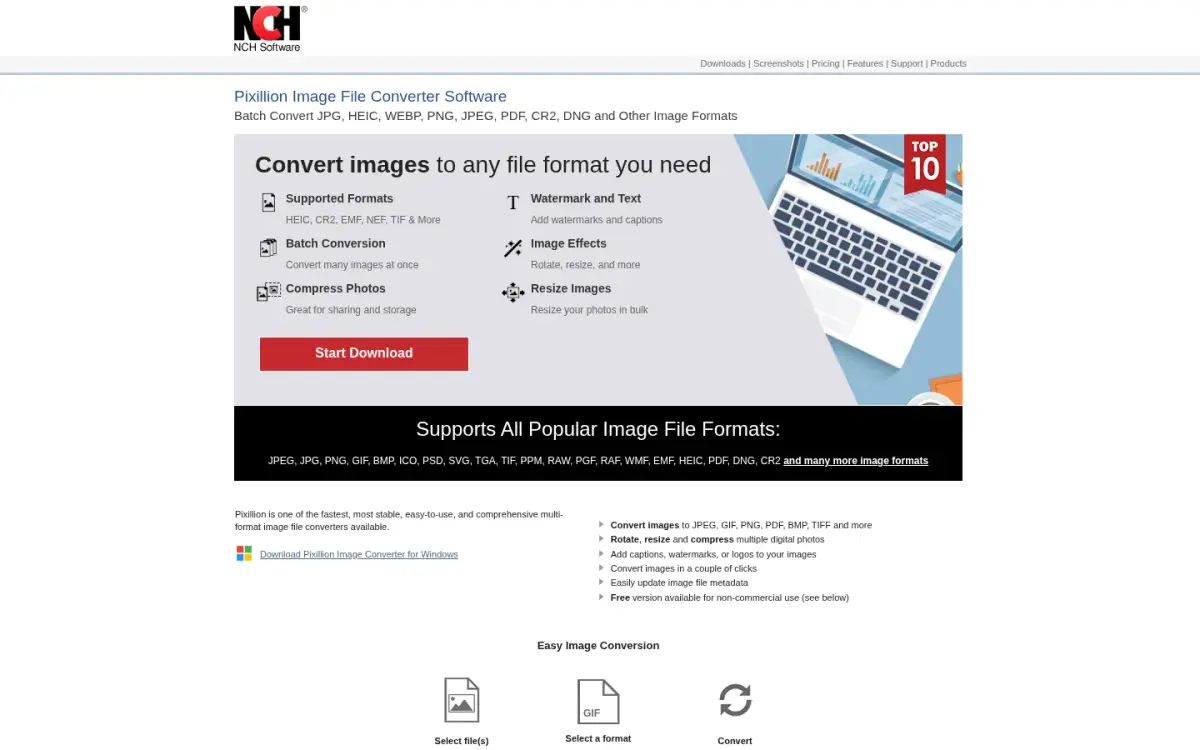
Pixillion is NCH Software's image converter for Windows and macOS. It converts in batches, lists HEIC as an input and output format, and names HEIC to JPG as a popular conversion. The vendor claims 40+ formats, and NCH says its software has been released since 1993.
It does more than convert. The page lists batch resize, crop, rotate, flip, watermarks and captions, filters and colour adjustment, and you can combine images into TIFF, PDF or Docx. That makes it a better fit if the HEIC photos need resizing or branding on the way out.
The free version is for non-commercial home use only. The software runs on Windows 7 to 11 and macOS 10.5 or above, and it is installed rather than used in a browser. The page does not state a file-handling policy, so we cannot say anything about retention. The vendor claims 7,358,783 users downloaded it at the time we read the page.
There are catches. According to NCH's format table, HEIC and HEIF are read and write on Windows but read only on Mac, and some formats, such as PSD, need the paid Pixillion Plus edition. A paid version uses a serial number that you activate into a registration code, and we did not find the price on the pages we read. We found no stated EXIF option for the HEIC to JPG route.
It is the right tool if you already want a desktop batch editor. For a one-off HEIC conversion the install is more than the job needs.
- Free tier
- Free version for non-commercial (home) use only nchsoftware.com
- Platforms
- Windows (7 to 11) and macOS 10.5 or above, desktop download nchsoftware.com
- Formats
- Vendor claims 40+ formats; HEIC listed as input and output nchsoftware.com
- Mac caveat
- HEIC/HEIF is read and write on Windows but read only on Mac nchsoftware.com
- Users (vendor claim)
- 7,358,783 users downloaded nchsoftware.com
- Releases since
- 1993 (NCH Software) nch.com.au
Best suited for: Pixillion suits home users on Windows who want to batch convert and also resize or watermark photos in one desktop tool. It does not suit commercial users on the free version, or anyone on a Mac who needs to write HEIC.
8. Apowersoft, best for a simple converter with a quality slider
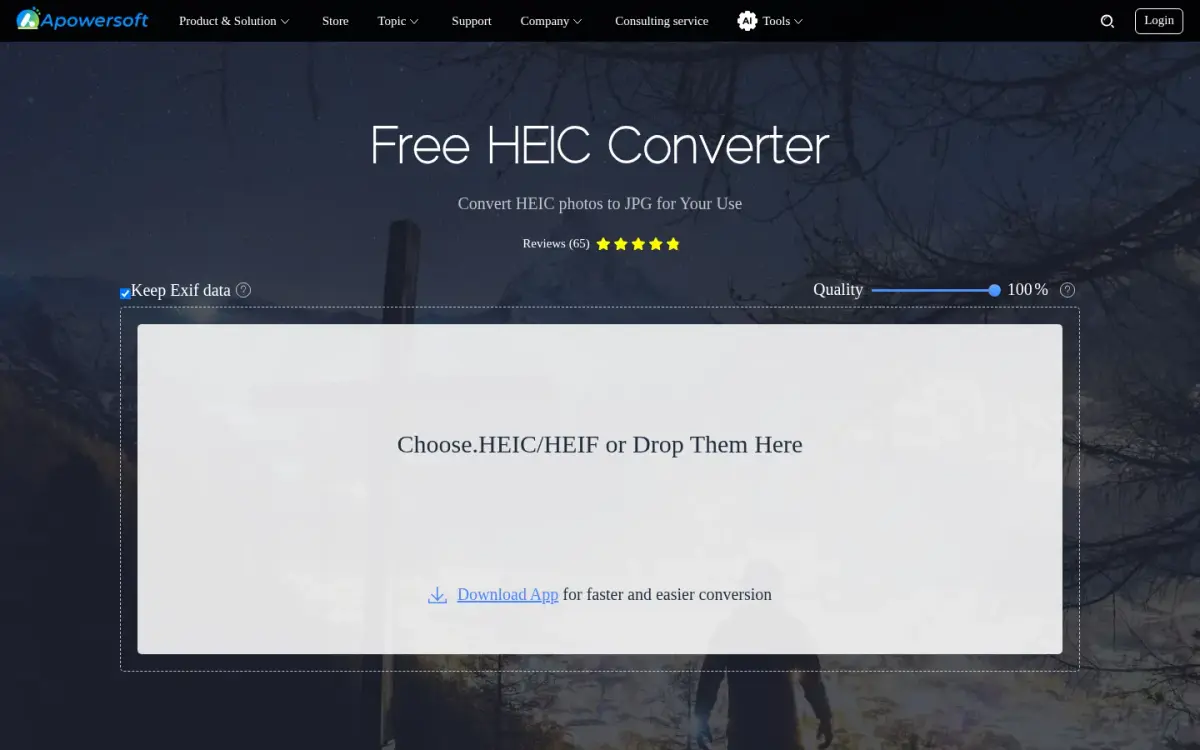
Apowersoft's HEIC to JPG page is a single-pair online tool. It is stated as free, with no sign-up or subscription, and it accepts HEIC and HEIF input. A desktop app is also offered, though we did not check its price.
The two controls are the useful part. A Keep Exif data checkbox is ticked by default, and the quality control defaults to 100%. That makes it one of only two tools here, with iMazing, that visibly lets you keep EXIF data. Unlike iMazing, it works from a web page and needs no install.
The batch cap is up to 30 photos per session, and no daily limit is stated. The page says images are deleted after conversion finishes, which is a vendor claim.
Where the file is processed is unclear. The heading says in the Cloud, while the body text says within your browser. The page does not say whether files are uploaded to a server, so treat it as unverified. If privacy is the reason you are choosing a converter, that ambiguity is a reason to pick a tool that states its position plainly.
The operating company is WANGXU TECHNOLOGY CO., LIMITED, and the page does not state its city or country. Ratings on the page are the vendor's own: the schema markup shows 4.8 from 433 ratings, while the visible badge reads Reviews (65). Neither is a third-party platform. We found no maximum file size and no commercial-use statement.
- Price
- Free, no sign-up or subscription required (online converter) apowersoft.com
- Batch
- Up to 30 photos per session; no daily limit stated apowersoft.com
- EXIF and quality
- Keep Exif data checked by default; quality defaults to 100% apowersoft.com
- Processing
- Ambiguous: page says both in the Cloud and within your browser apowersoft.com
- Retention
- Images deleted after conversion finishes (vendor claim) apowersoft.com
- Rating (vendor schema)
- 4.8 from 433 ratings; visible badge reads Reviews (65) apowersoft.com
Best suited for: Apowersoft suits someone who wants to keep EXIF data from a browser page and is comfortable with an unclear statement on where the file is processed. It does not suit people who need a firm privacy position or a batch larger than 30.
Side-by-Side Comparison
This table restates the seven criteria for each product, in ranking order. ToAny loses on EXIF handling to iMazing and Apowersoft, and on stated batch size to HEICtoJPG.com. Cells say Not stated where the vendor's page gives no value.
| Product | Where the file is processed | Price | Batch or daily limit | Free max file size | File retention on the vendor server | EXIF metadata handling | Commercial use allowed |
|---|---|---|---|---|---|---|---|
| ToAny | Browser | Free | Several at once, no number | Not stated | None for browser conversions | Not copied into the JPG | Not stated |
| iMazing Converter | Desktop app (local) | Free | No limits stated | Not stated | None (local) | Keep or strip | Not stated |
| HEICtoJPG.com | Uploaded (Beamr) | Free (0 USD) | Up to 200 photos per batch | Not stated | Within 48 h (terms) | Not stated | Prohibited in terms |
| Ezgif | Uploaded | Free | None stated | 200MB | 1 hour | Not stated | Not stated |
| CloudConvert | Uploaded | Free (EUR 0), 10 credits a day | 10 credits a day | 1 GB | 24 h at the latest | Not stated | Free plan is for personal use |
| FreeConvert | Uploaded (AWS, Ireland) | Free; paid from $12.99/month | 20 conversion minutes a day | 1 GB | 8 hours | Not stated | Not stated |
| Pixillion (NCH Software) | Desktop app | Free for home use | Not stated | Not stated | Not stated | Not stated | Free version is non-commercial only |
| Apowersoft | Unclear (cloud or browser) | Free | 30 photos per session | Not stated | Deleted after conversion (vendor claim) | Keep option, on by default | Not stated |
Which HEIC to JPG converter fits your use case
Match your situation to a row. If two rows apply, privacy and licence terms should settle it before price does.
| If you are... | Pick | Why |
|---|---|---|
| Converting personal photos and want them to stay on your device | ToAny | Browser conversion, nothing uploaded, no account |
| A photographer who needs EXIF and colour profiles kept | iMazing | Keep or strip EXIF, colour profiles including wide-gamut |
| Sending a large batch and happy to upload | HEICtoJPG.com | Up to 200 photos per batch; terms prohibit commercial use |
| Converting one large file you will not keep online | Ezgif | 200MB limit, deleted 1 hour after upload |
| Building a pipeline that needs an API | CloudConvert | REST API (FreeConvert also has one), 1 GB free file size, 24 hours retention at most |
| On Windows and wanting to resize or watermark while you convert | Pixillion (NCH Software) | Batch resize, watermark and effects; free for home use only |
What results look like with ToAny
We have no measured HEIC to JPG size table to quote. What we do have are measured runs from ToAny's compress research on JPEG files, which is the usual next step once your photos are JPGs. They were measured in tests on Node and in the same library versions the site ships, not in the shipped page and not from user data.
- Lossless JPEG re-pack, pixels unchanged1,128 KB980 KB (13.2% smaller)One 2205x1240 photo in ToAny's compress research. Across six files the lossless re-pack changed size by -6.5 to -17.3 %, so the saving is not guaranteed.
- Re-encoded JPEG at quality 751,128 KB230 KB (about 80% smaller)The same photo, which was saved at near-maximum quality, scored an SSIM of 0.987 after re-encoding. That is a lossy step, so look at the result before you send it.
- A JPG that is already as small as it getsAn already-compressed JPGOriginal returned, with a reasonToAny never returns a larger file. If a result would not be smaller, you get the original back and a message that it is already as small as it gets.
Frequently Asked Questions
How do I convert HEIC to JPG without uploading my photos?
Use a tool that runs on your device. ToAny converts in the browser tab, and iMazing and NCH's Pixillion run as desktop apps. The other five tools in this list upload the file, or in Apowersoft's case do not say clearly.
What is the best HEIC to JPG converter for a large batch?
HEICtoJPG.com states up to 200 photos per batch, but it uploads the photos and its terms prohibit commercial use. Apowersoft states 30 photos per session. ToAny and iMazing state no number, and ToAny downloads the results as a ZIP.
How long do online converters keep my HEIC files?
Ezgif states 1 hour, FreeConvert 8 hours and CloudConvert 24 hours at the latest. HEICtoJPG.com's terms say 48 hours, although its homepage says immediate deletion.
What happens to EXIF and GPS data when I convert?
It depends on the tool. ToAny does not copy EXIF or GPS data into the JPG, iMazing lets you keep or strip it, and Apowersoft keeps it by default. The other tools state nothing, so test one photo first.
Why is my JPG bigger than the HEIC?
JPG is an older and less efficient format, so the same photo needs more bytes. The JPG is often about double the size of the HEIC. HEICtoJPG.com optimises its output with JPEGmini to reduce this.
Is it free to use a HEIC converter for work?
Check the terms. HEICtoJPG.com prohibits commercial use, NCH's free version is for home use only and CloudConvert's free plan is for personal use. ToAny and the other tools do not state a commercial-use rule in the pages we read.
What should I do if a converter cannot read my HEIC file?
ToAny detects the file by its contents rather than its name. For rare files such as a 4:4:4 camera HEIF or a picture over 50 megapixels, it downloads a larger decoder of 1.4 MB. If that still fails, try iMazing on a Mac or PC.
How do I stop my iPhone saving photos as HEIC?
Open Settings, Camera, Formats and choose Most Compatible. New photos are then saved as JPG, while photos already taken stay HEIC until you convert them.
Try ToAny for free (no account required)
Open the page, drop in your HEIC photos and press Convert.
The JPGs are made in your browser tab, so the files stay on your device.
There is no account, no email address and no watermark.
Use Options if you want a lower quality, a target file size or a resize.
When you are ready, convert your first file now.
If you need EXIF data kept, try iMazing instead.