Best Video Compressors in 2026: the buyer's shortlist

By Thien · Maker of ToAny
Published
The best video compressor depends on where you want the file to be processed. ToAny is our number one for quick jobs: it compresses in your browser, costs nothing and has no daily limit. Five alternatives follow, from open-source desktop tools to a hosted service. We rank on seven measurable criteria and show where ToAny loses, including speed and scripting.
Want to try it before reading on? ToAny's free tool shrinks a video on your device, with no account and no watermark. Compress a video in your browser
Key Takeaways
- ToAny is the pick for a quick, private job. The video is compressed in your browser and is not uploaded. It is free, needs no account and has no daily limit.
- Desktop tools win on speed and size. HandBrake, FFmpeg and VideoProc run natively and VideoProc states GPU acceleration. ToAny is bounded by browser memory, with a 2 GB input ceiling on its fast path and 1 GB on its fallback.
- Scripting is where ToAny loses. HandBrake has a command-line version, FFmpeg is a command-line tool with libraries and Zamzar has an API. ToAny has none of these.
- Hosted free tiers are tight. Zamzar allows 2 compressions per 24 hours and 50 MB per file on the free service. Paid plans start at $12 per month.
- A preset can make a small file larger. ToAny now returns the original when the result would be bigger. Check the size of any output before you send it.
What video compressors actually are (and what they are not)
A video compressor makes a video file smaller so that it fits an email, a chat upload or a storage limit. It does this by re-encoding the video with a more efficient codec, a lower bitrate, a smaller frame size or a combination of these. The audio track is usually re-encoded too. The saving comes from discarding detail the eye is unlikely to miss.
That is why results vary. Footage with fast motion and fine detail has to give up more quality to reach a given size. A screen recording or a slide video is often small already, and a heavy preset can even make it larger. Controls matter here. A level, a bitrate or a target size lets you decide how much sharpness to trade for bytes, rather than accepting whatever the tool picks.
There are three kinds of tool. Desktop software and command-line tools process the file on your own computer and can use the graphics card. Hosted services upload the file to the vendor's server, compress it there and let you download the result. Browser-based tools do the work on your device, so the file does not leave it. Each costs you something.
A video compressor is not an editor. It will not trim, caption or colour-correct your footage, although some of the products below also do that. It cannot restore detail that an earlier compression removed. It also cannot promise a fixed saving. Treat any advertised percentage as a best case, and watch the output before you send it.
The best video compressor for you is the one that matches your file, your computer and your privacy needs. This shortlist judges tools you can use today on what each publishes. For images and PDFs, ToAny has a separate compress tool.
How We Ranked These Video Compressors
We ranked each tool on seven criteria, using only what the vendor or our own measured runs state. Where a number is not published, the table says so rather than guessing. Prices are quoted as displayed, with currency and billing period.
- Criterion 1Where the file is processedBrowser, local app or vendor server
- Criterion 2PriceFree, or the cheapest paid price as displayed
- Criterion 3Free-tier limitFiles, minutes or size on the free tier
- Criterion 4Largest input documentedLargest file or length the vendor states
- Criterion 5Speed evidenceMeasured or stated throughput
- Criterion 6PlatformsWeb, desktop or mobile
- Criterion 7Scriptable (CLI or API)Yes or no
The Best Video Compressors in 2026
The list runs from first to last in our ranking. ToAny is first because privacy, price and the lack of an install count most for a quick job. It is not the best at everything, and each section says where it falls short. Every entry gives the facts we could verify and who the tool suits.
1. ToAny, best for private, no-limit compression in the browser
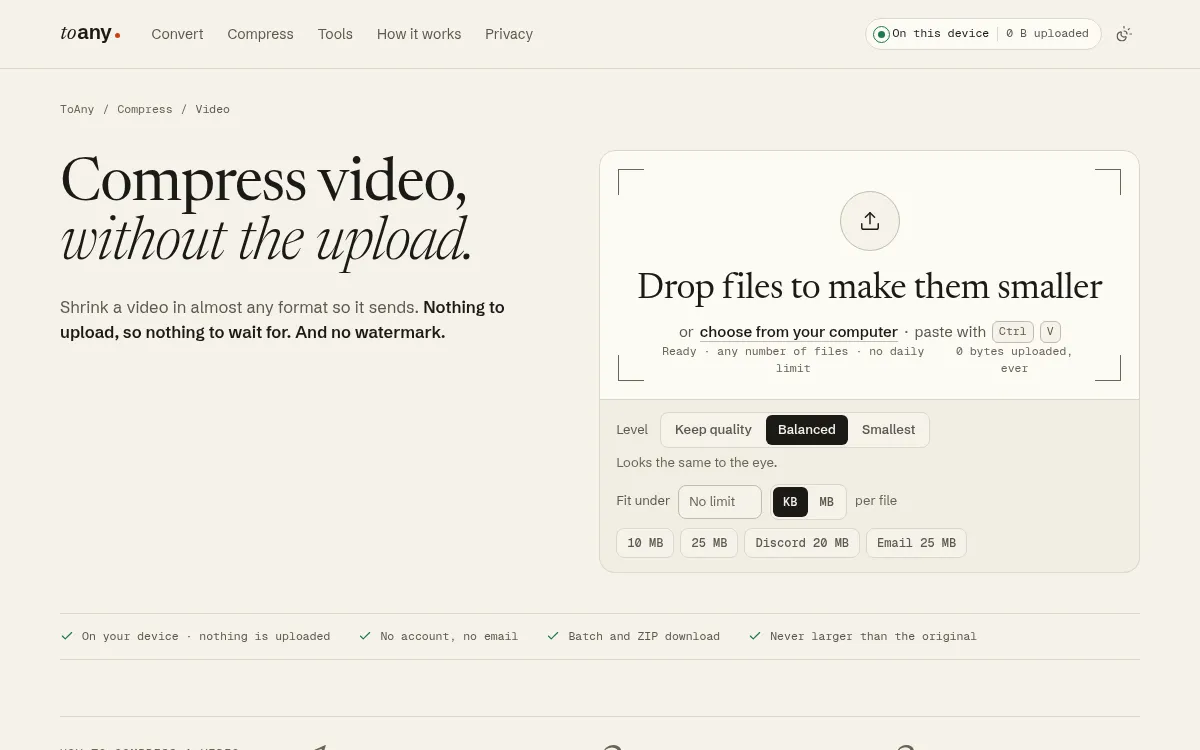
ToAny compresses video in your browser. You drop a file (it handles MP4 and other common types), pick Keep quality, Balanced or Smallest, or set a size to fit under, and the result is made on your device. The video is not uploaded. There is no account, no watermark and no daily limit, and several files can be done at once and downloaded as a ZIP. The tool is free.
Presets cover the common targets: 10 MB, 25 MB, Discord 20 MB and Email 25 MB. If the result would be larger than the original, ToAny returns the original and says so. In our tests, landing on a size target came within about 4% above the target on real footage.
ToAny is part of a wider converter with 190 formats and 1,195 pairs, so a MOV to MP4 or other video conversion sits one click away. Browsers with a built-in hardware encoder use it, which is fast. Formats outside that path fall back to ffmpeg compiled to WebAssembly.
The weak spots are real. The fast path accepts input up to 2 GB and the fallback up to 1 GB. The fallback ran at 0.27x to 0.9x real time on 1080p and 720p x264 jobs on a Mac in Chrome 154, and phones were not measured. ToAny states that video can be slow on phones, and large files are limited by device memory. It has no API or command line, and it shows no time estimate before a video run.
Single-thread WebAssembly keeps it working without special browser headers, but it will not match a native encoder with a graphics card. On a one-off clip, the setup time you save usually outweighs that.
- Where processed
- In your browser; compression never uses ToAny's server toany.io
- Price
- Free; no account, no email toany.io
- Free-tier limit
- No daily limit on browser conversions toany.io
- Largest input
- 2 GB on the WebCodecs path, 1 GB on the ffmpeg fallback toany.io
- Speed (ffmpeg fallback)
- 0.27x to 0.9x real time on 1080p/720p x264 jobs (Mac, Chrome 154) toany.io
- Scale
- 190 formats, 1,195 pairs toany.io
Best suited for: ToAny suits anyone who needs to shrink a clip now, without installing software or handing the file to a third party. It is a poor fit for very large files, scripted pipelines or long jobs on a phone.
2. HandBrake, best for big batches on a desktop
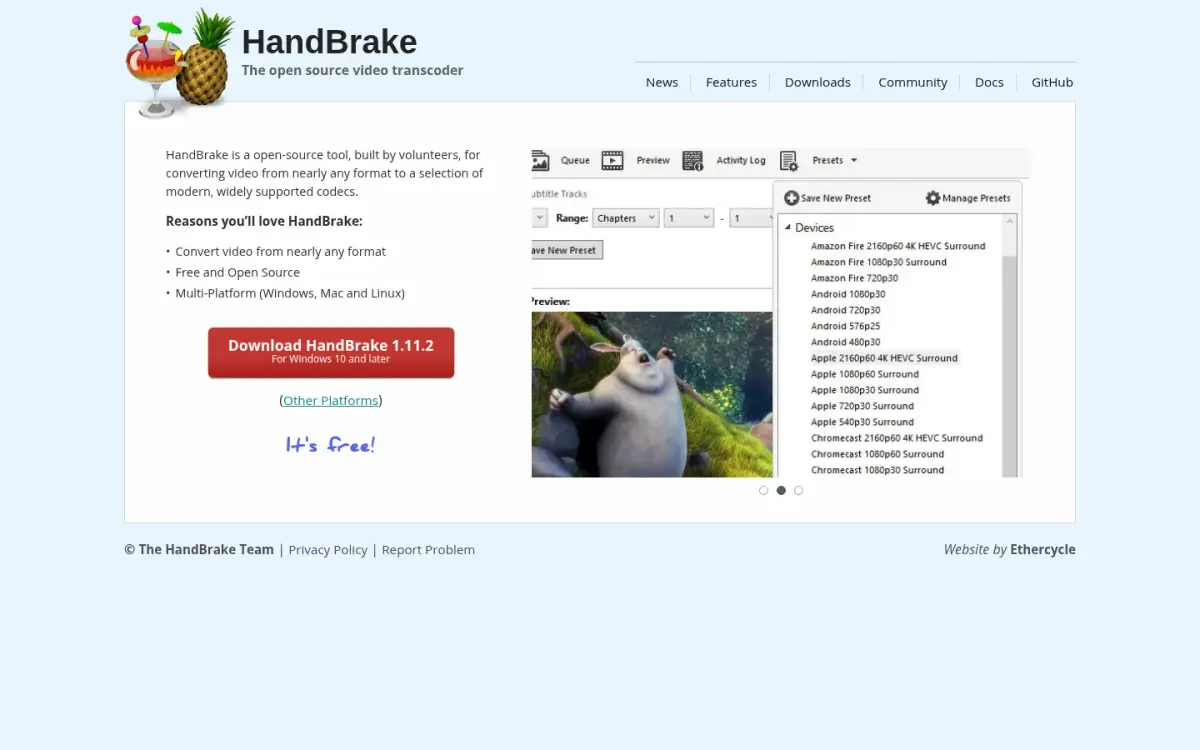
HandBrake is a free, open-source video transcoder that runs on your own computer. Its own page describes it as a tool, built by volunteers, for converting video from nearly any format to a selection of modern, widely supported codecs. It is free and needs no account.
The vendor states that it runs entirely locally. Its privacy page says no information is collected or transmitted about application logs, error information or source and encoded content. The update check is opt-in. Web server logs are kept, and the site is hosted in France.
The app runs on Windows, Mac and Linux. The current version we read was 1.11.2, which needs macOS 10.13 or later or Windows 10 or later, on x64 and ARM64. Most of the source code is under the GNU General Public License, version 2, with some portions under the BSD 3-Clause licence. A command-line version is offered for scripting.
The home page screenshot shows a long list of device presets, such as Android, Apple and Chromecast profiles. That makes it easy to pick a target for a phone or a television. Its window also has a Queue button, so you can line up several jobs.
The costs are time and learning. You have to download and install the app, and its settings take longer to understand than a single slider. The vendor does not publish a maximum input size or a speed figure, so we cannot compare it with ToAny on those two criteria.
For a large library, a long film or a repeat job, it is a better tool than any browser page. A single short clip hardly needs it.
- Price
- Free handbrake.fr
- Account required
- No handbrake.fr
- Where processed
- Local, on your computer (desktop app) handbrake.fr
- Platforms
- Windows, Mac, Linux handbrake.fr
- Current version
- 1.11.2; macOS 10.13+, Windows 10+ (x64 and ARM64) handbrake.fr
- Scripting
- Command line version offered handbrake.fr
- Licence
- GPL v2 for most of the source code; portions BSD 3-Clause handbrake.fr
Best suited for: HandBrake suits people with large or many video files who are happy to install a desktop app and learn its settings. It is less suited to a one-off clip on a locked-down work computer or a phone.
3. FFmpeg, best for scripted pipelines and full control
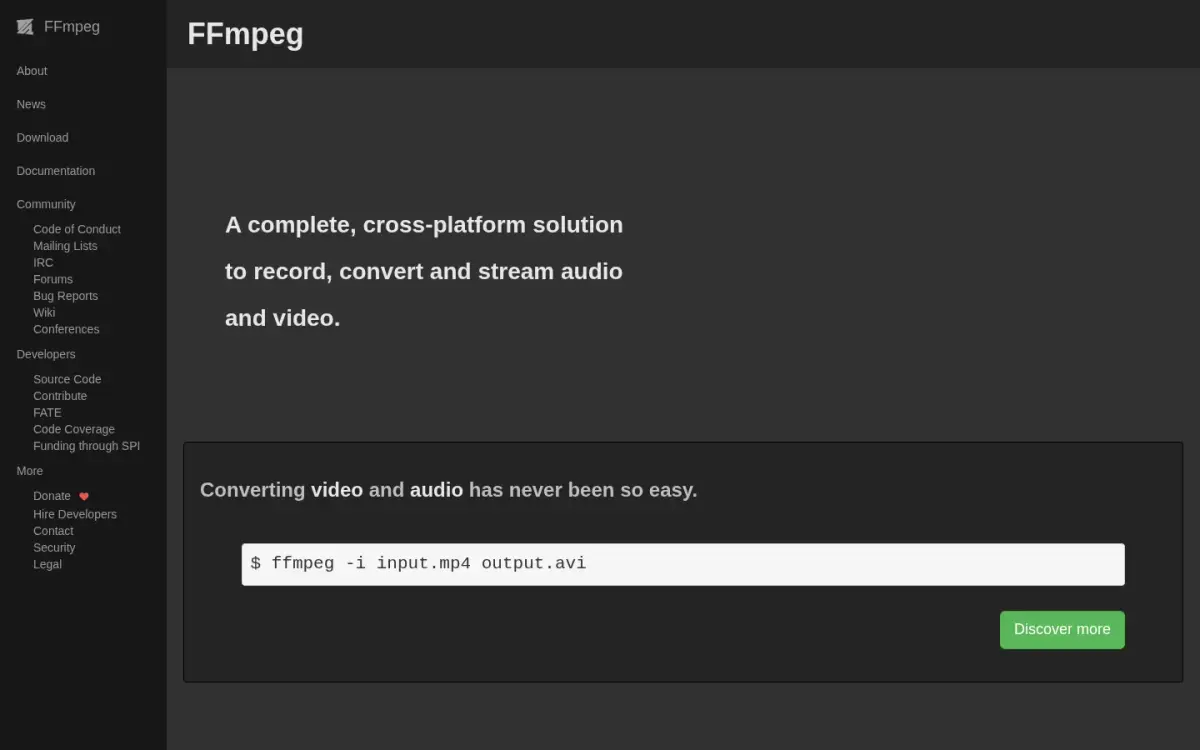
FFmpeg is a multimedia framework, not an app with a window. The project describes ffmpeg as a command-line tool to convert multimedia files between formats, alongside ffplay and ffprobe. Its home page shows a single command that converts one file to another. The project claims to handle pretty much anything.
It is free. The code is open source under LGPL version 2.1 or later, with optional parts under the GPL, and it is not available under other licensing terms. Funding goes through SPI, and the site menu has Donate and Hire Developers links.
FFmpeg compiles and runs on Linux, Mac OS X, Windows, the BSDs and Solaris. The project itself ships source code only. It links to third-party compiled builds for Linux, Windows and macOS, so you choose whose binary to trust. The latest release we saw was FFmpeg 9.0.2, with a tarball dated 2026-09-18.
This is the strongest option for automation. Its libraries, including libavcodec, libavformat and libavfilter, can be used inside other applications, and the command-line tool can be scripted for folders of files. ToAny's own fallback encoder is ffmpeg compiled to WebAssembly.
The trade-off is usability. It is a command-line tool rather than an app with a window, so you need to know which codec, bitrate and options to ask for.
The project does not publish a maximum input size or a speed figure, so we leave those cells as not stated. For a developer, an editor with a repeatable job or a server pipeline, nothing here beats it. For someone who just wants a smaller file today, it is the hardest route.
- Price
- Free; open source under LGPL version 2.1 or later ffmpeg.org
- Tool
- ffmpeg is a command line tool to convert multimedia files between formats ffmpeg.org
- Libraries
- Libraries usable by applications (libavcodec, libavformat, libavfilter, etc.) ffmpeg.org
- Platforms
- Compiles and runs on Linux, Mac OS X, Windows, the BSDs, Solaris ffmpeg.org
- Downloads
- Source code only from the project; third-party compiled builds linked for Linux, Windows and macOS ffmpeg.org
- Latest release
- FFmpeg 9.0.2 "Lei"; tarball dated 2026-09-18 ffmpeg.org
Best suited for: FFmpeg suits developers, editors and system administrators who want scripted, repeatable control over every setting. It is a poor fit for anyone who wants a window, a preview or a single button.
4. VLC media player, best for a player you probably already have
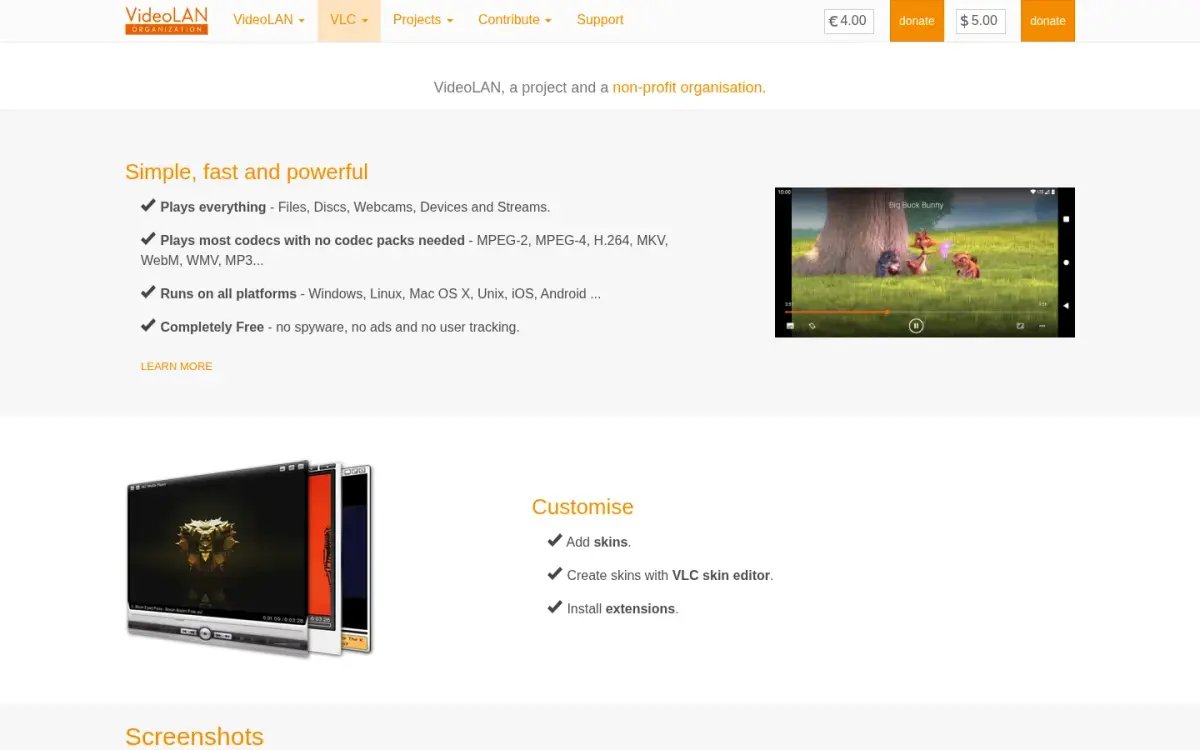
VLC is a media player first. It comes from VideoLAN, a French non-profit organisation that began in 1996 as a student project at the École Centrale Paris. The code was made open source in 2001, and the project has been an autonomous non-profit since 2009.
It is completely free. The vendor says it has no ads. It runs on Windows, Linux, Mac OS X, Unix, iOS and Android, which covers more operating systems than any other product on this list.
The latest desktop version we saw was 3.0.24, and the Windows 64-bit download is 44 MB. The iOS app lists 48 language codes for its interface. On the App Store its average rating was 3.71682 from 5982 ratings when we checked on 2026-10-17.
Our honest limit is this. The vendor pages we read describe playing, not compressing. We did not verify its conversion settings, and the vendor publishes no maximum input size, speed figure or scripting guarantee in those pages. We therefore mark those cells as not stated rather than guess.
Why include it, then? Because many people already have it installed. If you only need one file converted to another format and you do not want to add software, it is worth a look. We did not verify that it offers a size target, a preset for a chat app or batch handling.
Treat it as a fallback that is already on your computer, not as a dedicated compressor. For anything you plan to repeat, one of the other tools will cost you less time.
- Price
- Free (vendor: "Completely Free") videolan.org
- Platforms
- Windows, Linux, Mac OS X, Unix, iOS, Android videolan.org
- Desktop app
- Latest desktop version listed 3.0.24, Windows 64-bit 44 MB videolan.org
- Ads
- No ads (vendor claim) videolan.org
- Founded
- Started 1996 as a student project at École Centrale Paris; open source 2001; autonomous non-profit since 2009 videolan.org
- iOS rating
- 3.71682 average from 5982 ratings (checked 2026-10-17) itunes.apple.com
Best suited for: VLC suits someone who already has it installed and needs a simple conversion without adding software. It is a weak fit for size targets, batches or any job you will repeat.
5. VideoProc Converter AI, best for gpu-accelerated local compression
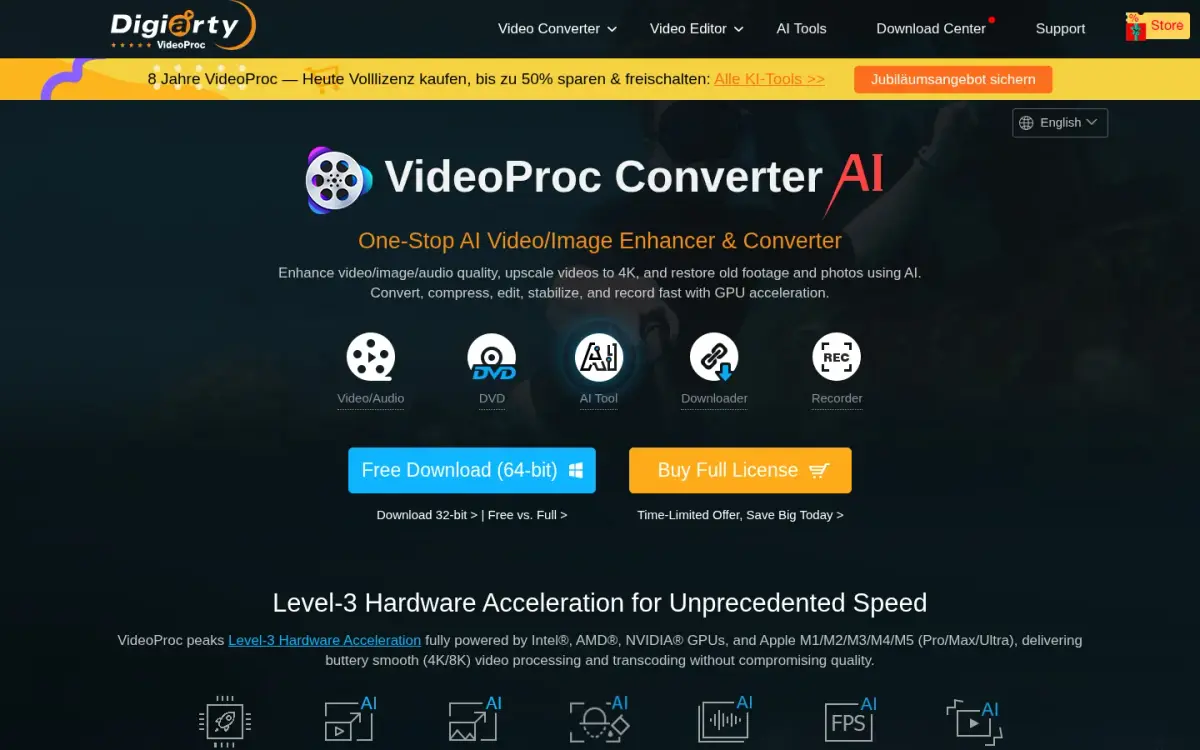
VideoProc Converter AI is paid desktop software from Digiarty Software, which says it was established in 2006. It runs on Windows and macOS, and licences are platform-specific. The vendor claims 5.2 million users from 180+ countries and says it can compress videos by over 90%.
Its main selling point is speed. The home page describes level-3 hardware acceleration using Intel, AMD and NVIDIA graphics cards and Apple M-series chips. That is the one place in this list where a vendor states GPU use, and it is where ToAny cannot compete. The vendor also claims 370 input codecs and 420+ output formats.
Pricing, as displayed on the buy page, is as follows. Premium 365 is a one-year subscription for 3 PCs or Macs at $34.95 USD on sale, down from a list price of $59.95, and it auto-renews at $39.95 USD a year. A lifetime licence for 1 PC or Mac is $54.95 USD on sale, from $89.95. A family lifetime licence for 3 to 5 PCs or Macs is $79.95 USD, from $159.95. These are time-limited sale prices, and there is a 30-day money-back guarantee.
The free trial needs no sign-up and no credit card. Compression, conversion and editing tools are limited to files under 5 minutes, and there is no limit on file size per task. AI tools allow 5 watermark-free exports, and Windows screen recordings carry a watermark.
The vendor says it uses local hardware acceleration, but its privacy policy says only that logs are seen if you send them. It does not state outright that files never leave your device, so we do not claim it.
It is a sound choice if you compress video often and want speed. For one short clip, the trial limit and the price are hard to justify.
- Premium 365
- $34.95 USD sale price for 1 year, 3 PCs or Macs (list $59.95); renews at $39.95 USD videoproc.com
- Lifetime licence
- $54.95 USD sale price for 1 PC or Mac (list $89.95) videoproc.com
- Free trial
- Conversion, compression and editing tools limited to files under 5 minutes; no limit on file size per task videoproc.com
- Formats
- 370 input codecs and 420+ output formats videoproc.com
- Users claimed
- 5.2 million users from 180+ countries (vendor claim) videoproc.com
- Platforms
- Windows and macOS desktop; licences are platform-specific videoproc.com
- Refund
- 30-day money-back guarantee videoproc.com
Best suited for: VideoProc suits people who compress video regularly on Windows or a Mac and will pay for GPU speed and a wide format list. It is a poor fit for a single short clip or for anyone who wants a free tool without a trial limit.
6. Zamzar, best for hosted compression with no install
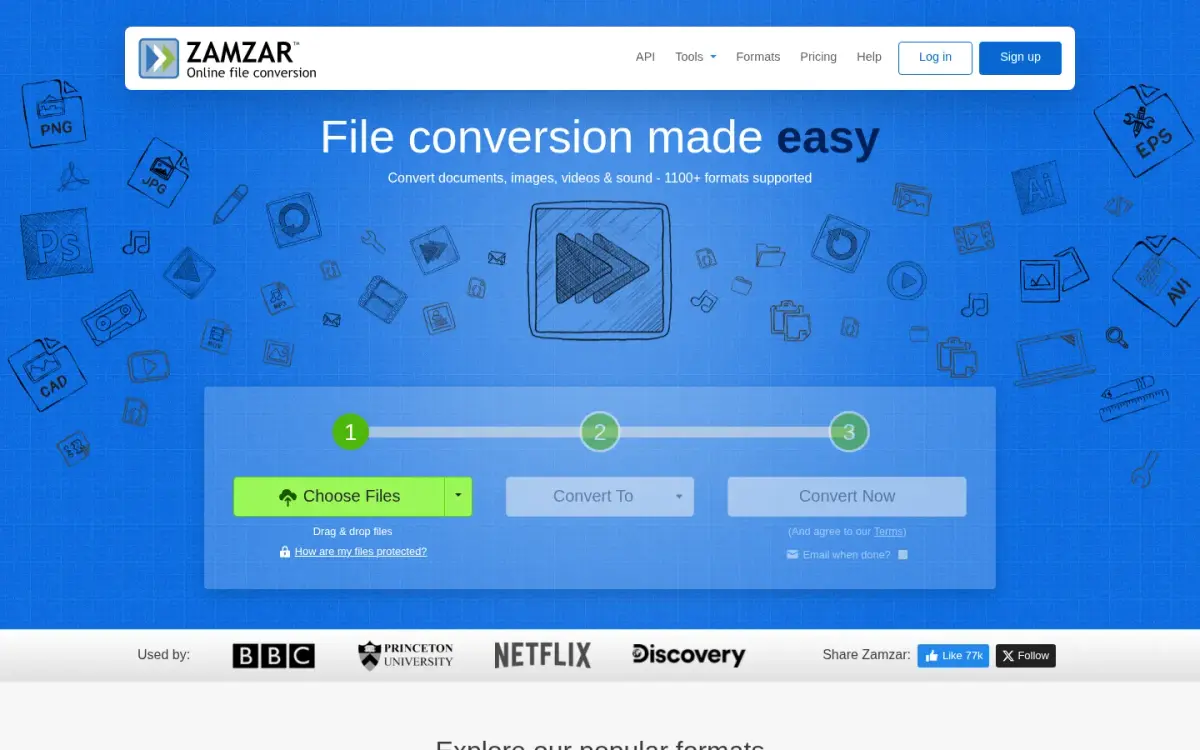
Zamzar is a hosted conversion service. Files are uploaded to its servers, which the privacy policy places in the United States. The company was founded in 2006 by the brothers Chris and Mike Whyley, is based in England and says it grows organically and turns down outside funding.
The free service needs no account. It allows 2 conversions and 2 compressions per 24 hours and 50 MB per file. If several files are uploaded together, the total must be under 50 MB.
Paid plans are Basic at $12 a month, Pro at $19 a month and Business at $39 a month, in US dollars, with a minimum of one month. Maximum file sizes are 200 MB, 400 MB and 2 GB. Paid accounts have unlimited daily conversions and compressions, and can upload 25, 50 or 100 files at once, depending on the plan.
Retention is stated. Free converted files are stored for 24 hours at most, and originals are deleted after conversion. Paid users' files are kept until they delete them.
Zamzar offers more routes than any other product here: a web app, a desktop app for Mac and Windows, conversion by email and an API. The API has a free plan with 100 credits and a 1 MB maximum file size, then Startup at $25 a month, Growth at $99 and Scale at $299. That makes it the only hosted choice in this list that you can script.
The vendor claims 550+ million users since launch.
For a video under 50 MB that you can upload, it is simple. For anything larger or more private, the free tier and the upload are the limits.
- Paid plans
- Basic $12/month, Pro $19/month, Business $39/month (USD) zamzar.com
- Free limit
- 2 conversions and 2 compressions per 24 hours; 50MB per file zamzar.com
- Paid file size
- Basic 200 MB, Pro 400 MB, Business 2 GB zamzar.com
- Processing
- Server-side: files are uploaded to Zamzar servers (United States per privacy policy) zamzar.com
- Retention
- Free converted files stored max 24 hours; originals deleted after conversion zamzar.com
- API
- Free (100 credits, 1 MB max file), Startup $25/mo, Growth $99/mo, Scale $299/mo developers.zamzar.com
- Founded
- 2006, by brothers Chris and Mike Whyley zamzar.com
Best suited for: Zamzar suits people who have a small video, no software to install and no concern about uploading, or developers who need a hosted API. It is a weak fit for large or confidential files on the free tier.
Side-by-Side Comparison
This table restates the seven criteria for each product, in rank order. Cells say not stated where the vendor publishes no figure. ToAny trails on speed, scripting and the largest input, and the plain cells show it.
| Product | Where the file is processed | Price | Free-tier limit | Largest input documented | Speed evidence | Platforms | Scriptable (CLI or API) |
|---|---|---|---|---|---|---|---|
| ToAny | Your browser | Free | No daily limit, no watermark | 2 GB (fast path), 1 GB (fallback) | 0.27x to 0.9x real time on fallback | Web; slower on phones | No |
| HandBrake | Local app | Free | None stated | Not stated | Not stated | Windows, Mac, Linux | Yes (command line) |
| FFmpeg | Local, command line | Free | None stated | Not stated | Not stated | Linux, Mac OS X, Windows, BSDs, Solaris | Yes (CLI and libraries) |
| VLC media player | Local app | Free | None stated | Not stated | Not stated | Windows, Linux, Mac OS X, Unix, iOS, Android | Not stated |
| VideoProc Converter AI | Local app (GPU) | $34.95 USD for 1 year (sale) | Files under 5 minutes | No file-size limit per task | GPU acceleration (vendor claim) | Windows, macOS | Not stated |
| Zamzar | Uploaded to its servers | Free; paid from $12/month | 2 compressions per 24 h, 50 MB | 50 MB free; 2 GB on Business | Not stated | Web, Mac and Windows desktop | Yes (API) |
Which video compressor fits your use case
Match the job to the tool. The picks below follow the criteria above rather than a general view of quality.
| If you are... | Pick | Why |
|---|---|---|
| Shrinking one clip to send or post today | ToAny | Nothing to install, no upload and no account. Presets cover 10 MB, 25 MB, Discord 20 MB and Email 25 MB. |
| Handling a long film or a large library | HandBrake | Free, local and built for big jobs, with device presets and a command-line version. |
| Building a repeatable pipeline or a server job | FFmpeg | A command-line tool with libraries, free and scriptable. |
| Compressing every week and wanting speed | VideoProc Converter AI | States GPU hardware acceleration. Paid, from $34.95 USD for a year on sale. |
| Working with a small file and no software | Zamzar | Hosted, 50 MB per file on the free service. It has an API if you need to script. |
| Wanting something already on your computer | VLC media player | Free and on desktop and mobile, though we did not verify its compression settings. |
What results look like with ToAny
These are measured runs from our own testing, not customer stories. ToAny has none to share. They include the awkward results, because a fair comparison needs them.
- A low-bitrate slide video, before the size guardslides.mp4, already low bitrate, preset applied1.271 MB in Chrome 154, 7.8% largerMeasured in our tests before the guard was added. ToAny now returns the original when the output would be larger, so this result no longer ships.
- Landing on a size targetReal footage, a target size setWithin about 4% above the targetMeasured on real footage in our tests. Treat the target as close, not exact, and leave a little headroom for an upload limit.
- Speed on the ffmpeg fallback1080p and 720p x264 jobs, Mac, Chrome 1540.27x to 0.9x real timeMeasured on the fallback path for formats the browser's own encoder does not cover. A low-resolution screen recording ran at 3.55x. Phones were not measured.
Frequently Asked Questions
What is the best video compressor?
It depends on the job. We rank ToAny first for quick, private, no-install work, and HandBrake or FFmpeg for large or scripted jobs on a desktop.
How does ToAny compress video without uploading it?
It runs the compression in your browser, using the built-in hardware encoder where one is available and ffmpeg compiled to WebAssembly where not. The file stays on your device. Compression never uses ToAny's server.
Is there a free video compressor with no watermark?
Yes. ToAny, HandBrake, FFmpeg and VLC are free. ToAny states no watermark, and VideoProc's free trial is limited to files under 5 minutes.
How large a video can I compress in the browser?
ToAny accepts input up to 2 GB on its hardware-encoder path and 1 GB on its ffmpeg fallback. Device memory is the real limit, and video can be slow on phones.
What are the limits of Zamzar's free video compression?
The free service allows 2 compressions per 24 hours and 50 MB per file. Paid plans start at $12 per month and raise the file size to 200 MB, 400 MB or 2 GB.
How can I compress many videos automatically?
Use FFmpeg or HandBrake's command-line version, both of which can be scripted. Zamzar offers an API with paid plans from $25 a month. ToAny has no API or command line.
Can compression make a video larger?
Yes. A heavy preset can enlarge a file that is already small, as it did to a low-bitrate slide video in our tests. ToAny now returns the original in that case.
What does VideoProc cost?
Premium 365 is $34.95 USD for one year on sale and renews at $39.95 USD. A lifetime licence for one PC or Mac is $54.95 USD on sale. Prices are time-limited.
Try ToAny for free (no account required)
Compress a video on your own device and keep it there.
There is no account, no watermark and no daily limit.
Pick Keep quality, Balanced or Smallest, or set a size to fit under.
If the result would be larger, ToAny hands back your original.
Compress your first video now, then check the size before you send it.