Best Audio Converters in 2026: the buyer's shortlist

By Thien · Maker of ToAny
Published
The best audio converter depends on whether you will accept an install, an upload or a limit. For most people converting a few files, ToAny comes first: it runs in the browser, costs nothing and asks for no account. It loses to others on formats, platforms and scripting, and this guide says where. Five alternatives follow, each checked against the vendor's own pages and compared on six measurable criteria.
Want to see how it behaves before you read on? ToAny's audio converter converts MP3, WAV, M4A, AAC, FLAC and OGG in your browser, free.
Key Takeaways
- ToAny is the quickest route for one-off jobs. It runs in the browser, needs no account and has no daily limit. It will not replace a command-line tool or an editor.
- CloudConvert is the pick if you need an API. It states 212 formats and a REST API, but the free plan is 10 credits a day and files are uploaded to its servers. They are deleted within 24 hours at the latest.
- Audacity, VLC and FFmpeg are free and installed. They run on desktop, and VLC is also listed for iOS and Android. Each asks you to download software first.
- Movavi is the only paid option here. The desktop page shows 95.95 AUD, and the 7-day trial converts only half of each audio file. Test with that limit in mind before you pay.
- Where the file goes matters more than the format list. Browser tools and installed software run on your device. Upload services such as CloudConvert and Movavi's online converter send the file to a server.
What audio converters actually are (and what they are not)
An audio converter takes a sound file in one format and writes the same sound in another. You might turn a WAV recording into an MP3 that is small enough to email, or an M4A voice memo into something an older player accepts. The conversion decodes the source and encodes it again with a different codec or container.
Two things follow from that. First, converting between lossy formats, such as MP3 to AAC, decodes already compressed audio and compresses it again, so some detail is lost each time. Converting from a lossless format such as WAV or FLAC to a lossy one is a one-way trade of size for fidelity. WAV to FLAC loses nothing, because FLAC is lossless.
An audio converter is not an audio editor. It does not edit the sound, although some tools on this list, Audacity in particular, are editors as well. It is not a downloader either: you start with a file you already have. It is not a repair tool, so a damaged file stays damaged.
Converters also differ in where the work happens. Some run inside your browser, some upload the file to a server and some are programs you install. That choice decides who can see your audio, how large a file you can use and whether you can work offline.
The tools here cover all three types. We compared them on where they run, price, stated format count, platforms, scripting support and free limits, using only facts the vendors publish. Where a vendor does not state a number, the table says so.
How We Ranked These Audio Converters
We ranked six tools on six criteria. Each one is a number, a name or a yes or no that you can check on the vendor's own site. We did not score design, speed on your hardware or sound quality, because those depend on your files and your machine.
Facts come from each vendor's pages and from the review pages named in the item lists, read on 17 October 2026. Where a vendor does not state a figure, we write "not stated" rather than guess.
- Criterion 1Where it runsBrowser, server upload, or installed software
- Criterion 2PriceFree, or the price as displayed with currency
- Criterion 3Formats supported (as stated)Number of formats the vendor states; not stated where none is given
- Criterion 4PlatformsOperating systems or web
- Criterion 5Scriptable (CLI or API)Yes or no: a command line or a documented API
- Criterion 6Free usage limitPer-day or per-trial limits on the free route
The Best Audio Converters in 2026
The list runs from the tool we would try first to the one that fits fewest people. ToAny leads because it combines no install, no upload for audio and no price. It does not win every criterion, and each entry below names its own weak spots. Read the comparison table after the list for the rows where others beat it.
1. ToAny, best for private conversion that stays in your browser
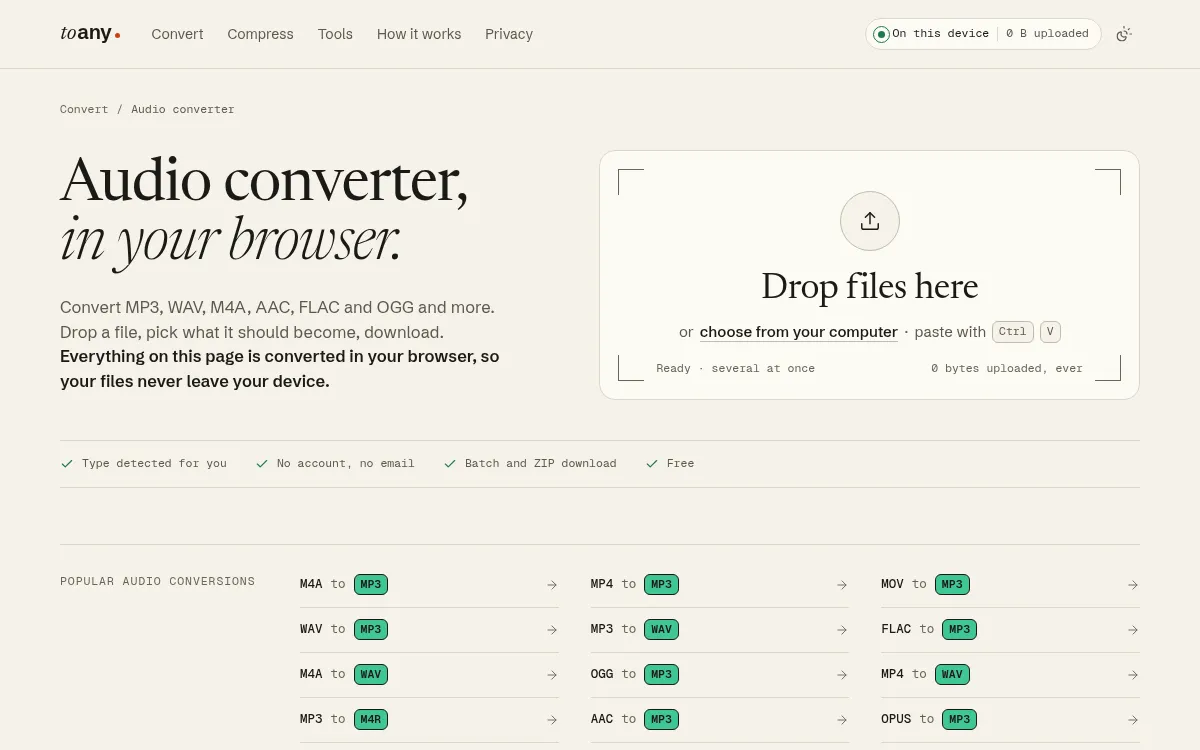
ToAny is a file converter that runs in your browser. For audio, that means your file is decoded and re-encoded on your own device. Its contents, name and size are not sent to ToAny. You can check that in your browser's Network panel.
It states 190 formats and 1,195 format pairs across nine categories. Audio pages include WAV to MP3, M4A to MP3, FLAC to MP3, MP3 to WAV and OGG to MP3. It detects the file type from the first bytes, so a mislabelled extension does not matter. You can drop several files and download the results as a ZIP.
It is free, with no account and no email address. The terms say it may show advertising, and none was visible when we checked on 17 October 2026. There is no daily limit on browser conversions. Sixteen document and e-book pairs run on ToAny's own server instead, only after you consent for each file, and no audio pair is among them. The privacy policy lists those pairs.
The weak spots are real. ToAny has no API, no command line, no desktop or mobile app and no offline mode, and it cannot import from cloud storage. Its 190 formats are fewer than CloudConvert's 212. Large files depend on your device's memory, and conversion that falls back to the WebAssembly engine runs at roughly real time, which is slower on a phone.
Choose it when the job is a handful of files and you would rather not install anything.
- Price
- Free. No account, no email, no sign-up. toany.io
- Formats
- 190 formats and 1,195 format pairs toany.io
- Where files go
- Browser conversions are not uploaded; 16 document and e-book pairs use ToAny's server after per-file consent toany.io
- Limits
- Large files are limited by the memory of your device; video conversion can be slow on phones toany.io
- Batch
- Several files at once, downloaded as a ZIP toany.io
Best suited for: Anyone converting a few audio files who wants no install, no account and no upload. It is a poor fit if you need an API, a command line or offline use.
2. CloudConvert, best for hosted conversion through an API
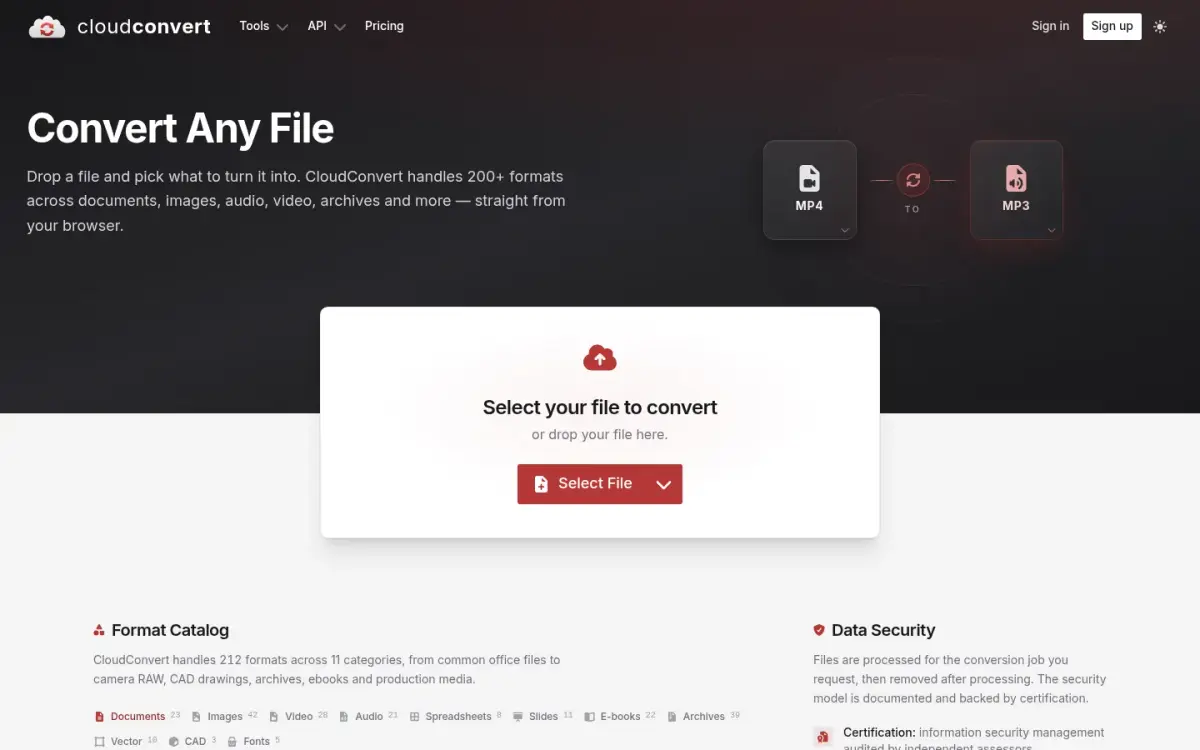
CloudConvert is a hosted converter that has been running since 2012. It is operated by Lunaweb GmbH in Germany and states 212 formats across 11 categories, 21 of them audio. It also sells a REST API, and its About page says 90% of files are processed through the API.
Your file is uploaded. The privacy policy says selected files are transferred to and temporarily stored on CloudConvert's servers, and deleted automatically after 24 hours at the latest. The security page says files are kept only for processing and deleted straight afterwards, and that the company holds ISO 27001 certification. It says it does not read or mine your files.
The free plan costs EUR 0 and gives 10 conversion credits a day, resetting daily. Maximum file size on the free plan is 1 GB, maximum processing time is 5 minutes and priority is low. Paid plans lift the file size limit. Packages are a one-off payment, subscriptions give monthly credits and unused credits do not roll over. We could not read the paid amounts from the pricing page, so we do not quote them. Credits are consumed at about one per minute of conversion time.
The privacy policy says registration is optional, though the free plan quota comes through sign-up. The About page claims more than 10,000 active customers and 20 files processed per second on average. Trustpilot shows 4.0 from 74 reviews on the Belgian Dutch-language page, and counts move over time.
It beats ToAny on formats and on automation, since ToAny has no API. It loses on privacy, because every file is uploaded, and on the daily cap.
- Free plan
- EUR 0, 10 conversion credits per day, 1 GB maximum file size cloudconvert.com
- Formats
- 212 formats across 11 categories (Audio 21) cloudconvert.com
- File retention
- Deleted automatically after 24 hours at the latest cloudconvert.com
- API
- Yes, REST API; 90% of files are processed via the API cloudconvert.com
- Founded
- 2012 cloudconvert.com
- Trustpilot
- 4.0 from 74 reviews (nl-be page); counts move over time nl-be.trustpilot.com
Best suited for: Developers and teams who want conversion behind an API, and people with files that need a format outside the common set. It is a weaker fit for sensitive recordings, since every file leaves your device.
3. Audacity, best for editing and recording alongside conversion
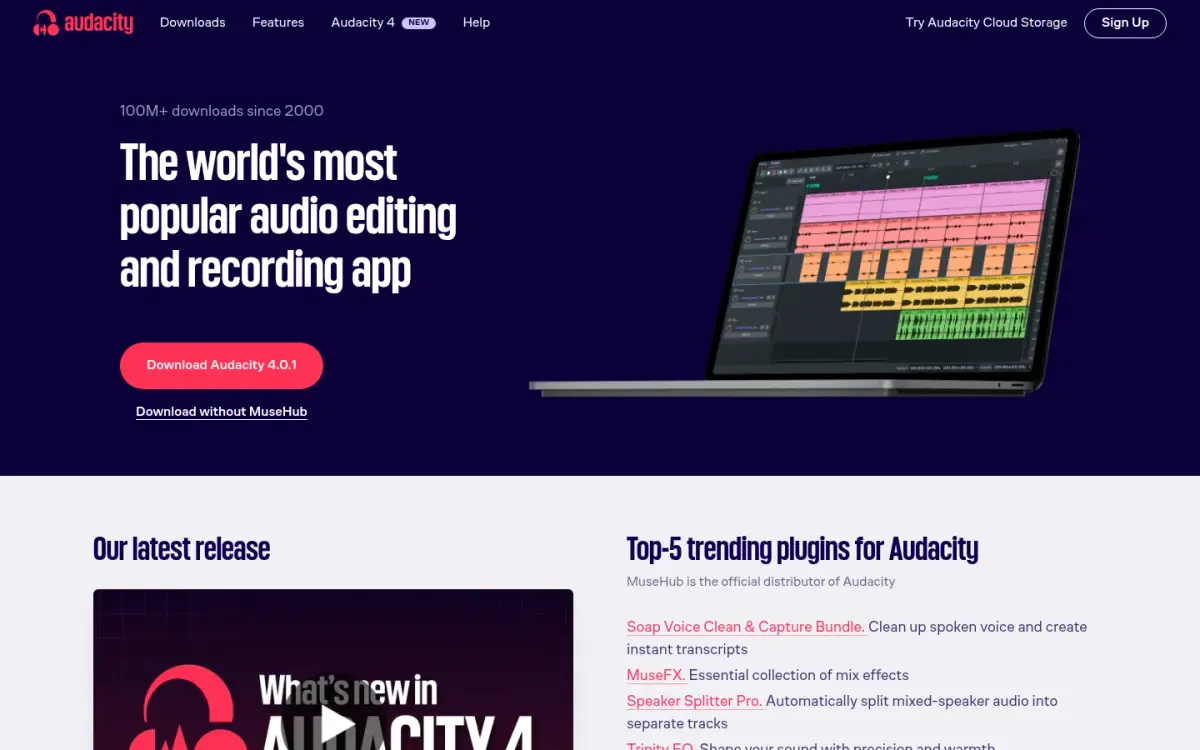
Audacity is a free, open-source audio editor and recorder for Windows, macOS and Linux. Its home page claims 100M+ downloads since 2000 and says it is free for everyone, always. The current version listed on the download page is 4.0.1. Note that the figure counts downloads, not users.
Converting is a side effect of editing. You open a file, change it if you want to, and export it in another format. That makes it a good choice when a conversion comes with other work: trimming a recording, joining takes or adjusting levels before you export.
It is installed software, and its privacy notice says no account is needed. We found no usage cap on the vendor's pages.
Two caveats. The download page lists the FFmpeg import and export library as a separate additional resource, so some formats may need that extra download. We could not confirm from the vendor's pages which formats Audacity exports natively, and it states no format count. And there is no phone version: the manual's FAQ says considerable rewriting would be needed before Audacity works on smartphones, though that FAQ may be dated, and the download page lists none.
Third-party sources, not the vendor, give the project's history. Wikipedia names Dominic Mazzoni and Roger Dannenberg as the creators, and lists the first public release as 28 May 2000. The site footer names Muse Group as the copyright holder.
Next to ToAny, Audacity is the stronger choice when editing is part of the job. For a quick conversion it is slower to start, because you install a full editor first.
- Price
- Free manual.audacityteam.org
- Downloads
- 100M+ downloads since 2000 (downloads, not users) audacityteam.org
- Platforms
- Windows, macOS, Linux; current version 4.0.1 audacityteam.org
- Account
- No account required audacityteam.org
- FFmpeg library
- Listed as a separate additional resource on the download page audacityteam.org
- Owner
- Muse Group (site footer copyright holder) audacityteam.org
Best suited for: Podcasters, musicians and anyone who needs to edit or record audio and export it in the same sitting. It suits people on Windows, macOS or Linux who do not mind an install.
4. VLC, best for converting inside a free media player
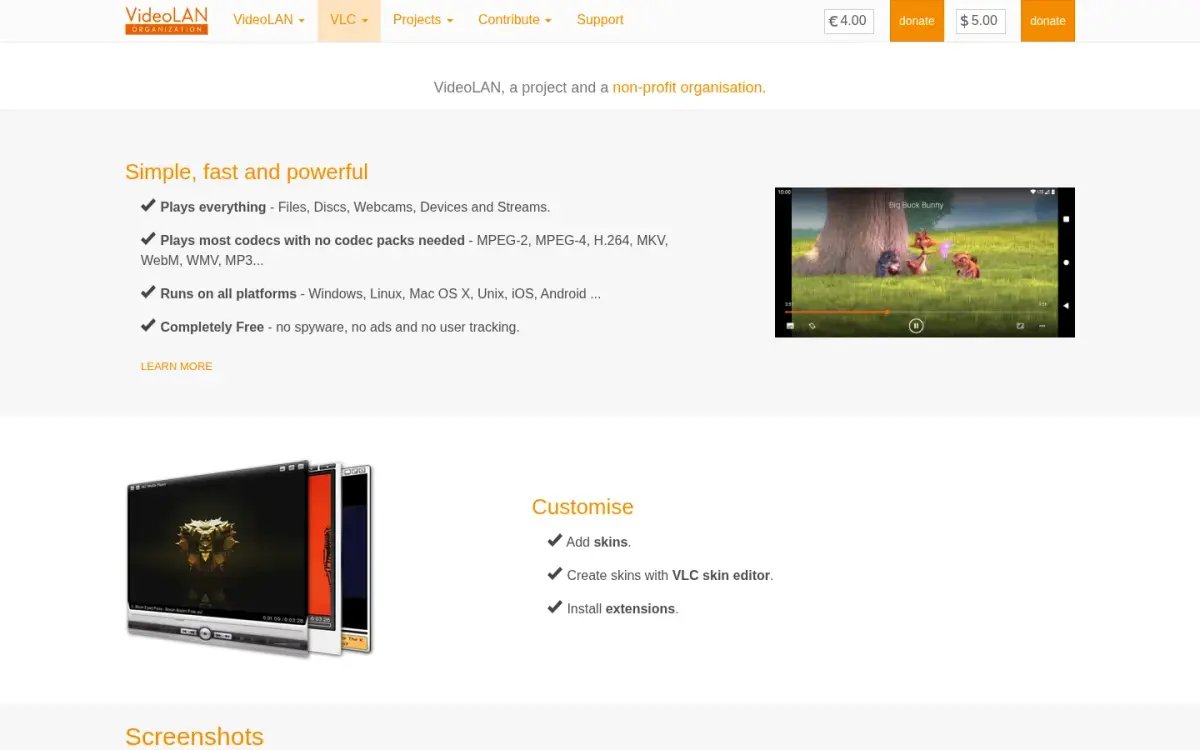
VLC is a media player from VideoLAN, a non-profit organisation based in France. It started in 1996 as a student project at École Centrale Paris, became open source in 2001 and has been an autonomous non-profit since 2009. The vendor calls it completely free and says it has no ads.
Its first job is playing files. It makes this list because it also has Convert/Save and streaming features, so if you already have it you may not need a second program. The vendor's pages describe it as playing most codecs with no codec packs needed.
It is the widest platform list here. The vendor lists Windows, Linux, Mac OS X, Unix, iOS and Android. The Windows 64-bit desktop download is 44 MB, and the latest desktop version listed is 3.0.24. The iOS app lists 48 interface languages, and its App Store rating is 3.71682 from 5,982 ratings, checked on 17 October 2026 through Apple's lookup API.
What we could not find is as important. The vendor's pages state no list of output formats, no format count and no documented command or API for conversion. We therefore cannot say how many audio formats it writes. Conversion is a secondary feature of a player, and the pages we read do not market VLC as a converter.
It is installed software, and none of the pages we read mention a usage limit.
Compared with ToAny, VLC reaches more platforms, phones included. A single conversion is easier in ToAny, since VLC needs installing and conversion is not its main job.
- Price
- Free (vendor: "Completely Free") videolan.org
- Ads
- No ads (vendor claim) videolan.org
- Platforms
- Windows, Linux, Mac OS X, Unix, iOS, Android videolan.org
- Desktop download
- Version 3.0.24; Windows 64-bit 44 MB videolan.org
- iOS rating
- 3.71682 average from 5,982 ratings (checked 2026-10-17) itunes.apple.com
- Founded
- Started 1996; open source 2001; autonomous non-profit since 2009 videolan.org
Best suited for: People who already have VLC and need an occasional conversion, or who want one free app on both desktop and phone. It is a poor fit for batch work or automation.
5. FFmpeg, best for scripted batch automation
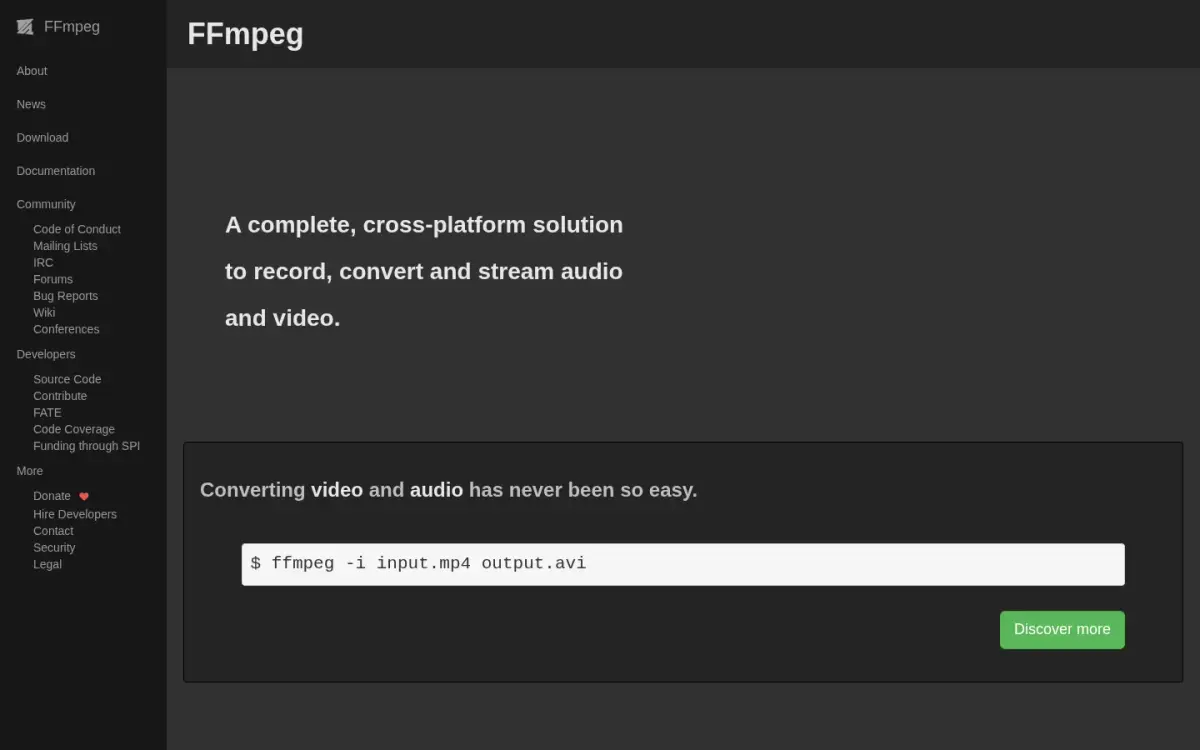
FFmpeg is a command-line tool and a set of libraries for converting multimedia files. The project describes itself as a complete, cross-platform solution to record, convert and stream audio and video, and its home page shows a one-line conversion: ffmpeg -i input.mp4 output.avi.
It is free and open source under the LGPL version 2.1 or later. The site lists funding through SPI and a Donate link. It states no format count, only that it handles pretty much anything. That is a claim, not a number, and we cannot compare it with CloudConvert's 212.
Its strength is automation. The libraries, including libavcodec, libavformat and libavfilter, are usable by other applications, and the command line runs in scripts, so you can convert a folder of files in one loop. ToAny's own fallback engine is an FFmpeg build compiled to WebAssembly.
The cost is a learning curve. There is no window and no drop zone: you type commands and read their errors. The project ships source code only, and compiled builds for Linux, Windows and macOS come from third-party links on its download page. The current release listed there is FFmpeg 9.0.2 "Lei".
The project's pages state no usage cap. Set against ToAny, FFmpeg gives far more control over scripting and batches, and it is the wrong tool for anyone who does not want a terminal.
- Price
- Free; open source under LGPL version 2.1 or later ffmpeg.org
- Formats
- No number given; the project claims to handle "pretty much anything" ffmpeg.org
- Platforms
- Source code only; third-party builds linked for Linux, Windows and macOS ffmpeg.org
- Scripting
- A command-line tool to convert multimedia files between formats ffmpeg.org
- Libraries
- libavcodec, libavformat, libavfilter and others usable by applications ffmpeg.org
- Latest release
- FFmpeg 9.0.2 "Lei" ffmpeg.org
Best suited for: Developers, sysadmins and anyone converting hundreds of files who is comfortable in a terminal. It is not for people who want to drop a file on a page.
6. Movavi, best for a polished paid desktop suite
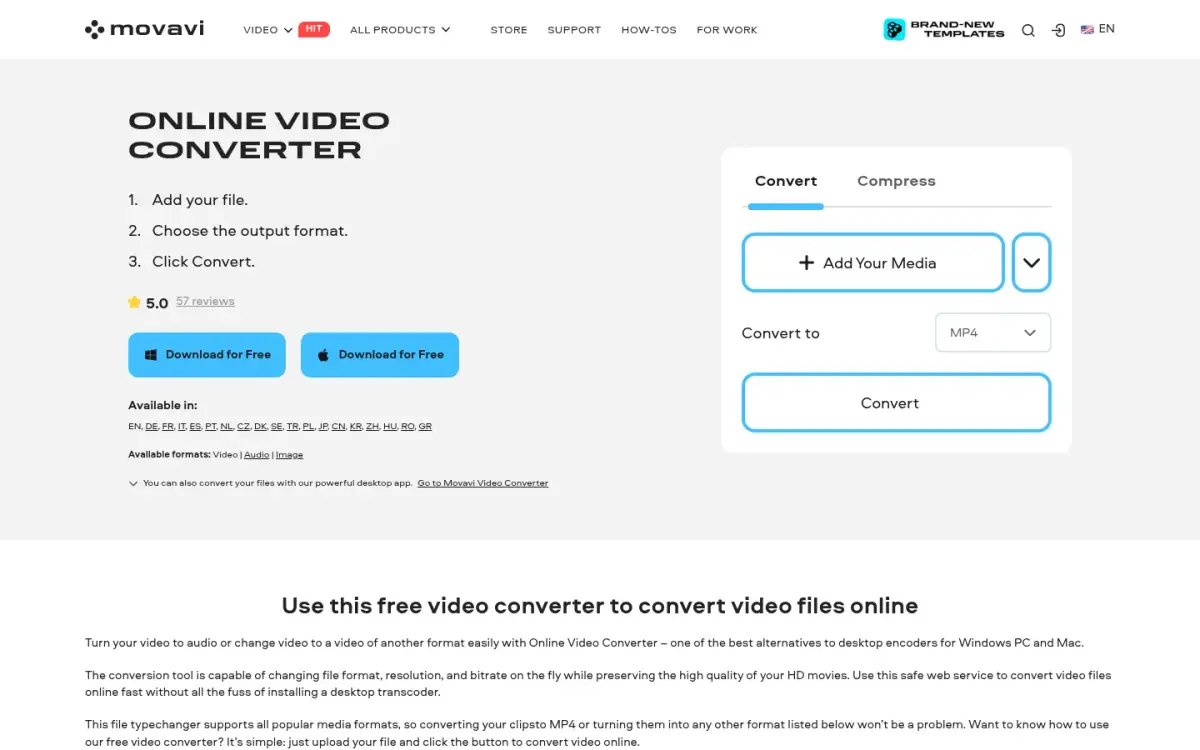
Movavi is a Cyprus-based software company, founded in 2004, that sells a desktop Video Converter and runs a free online converter. The desktop app states 180+ formats and runs on Windows 10 and 11 (64-bit) and macOS 12.0 or higher. The company says it has millions of users but gives no figure.
Prices were shown in Australian dollars to an Australian visitor. The desktop product page shows 95.95 AUD including VAT. The buy page shows a 1-month subscription at 27.95 AUD and a 1-year licence at 63.95 AUD, discounted from 91.95 AUD, with the offer valid until 18 October 2026. A Lifetime option exists, but we did not read its price. A 14-day money-back guarantee covers technical problems that cannot be solved.
The trial matters for audio. The vendor lists a 7-day trial, a watermark on output videos and, when converting audio files, an ability to convert only half the file length. If audio is your job, you cannot fully test it before paying.
The online converter works differently: you upload the file to Movavi. Our sources do not state how long uploads are kept, and they do not say whether the desktop app processes locally.
Reviews come from the vendor's own pages. They show 5.0 from 57 reviews, linking to Capterra, and 4.8 on G2 with no count shown. We did not read either review site, so treat both as vendor claims.
Movavi offers a desktop app and a money-back guarantee, which ToAny does not. ToAny is cheaper, and it has no half-length trial limit to work around.
- Desktop price
- 95.95 AUD incl. VAT (billing period not stated) movavi.com
- Subscriptions
- 1 month 27.95 AUD; 1 year 63.95 AUD (from 91.95 AUD, offer valid until October 18, 2026) movavi.com
- Trial limits
- 7-day trial, watermark on output videos, only half the length of audio files converted movavi.com
- Formats
- 180+ formats (desktop app) movavi.com
- Capterra
- 5.0 from 57 reviews (vendor-page claim) movavi.com
- Founded
- 2004 movavi.com
Best suited for: People who want a supported, paid desktop app and are happy to pay for it after a trial. It is a poor fit if you only convert audio now and then.
Side-by-Side Comparison
The table repeats the six criteria in rank order. Read the rows where ToAny does not lead: CloudConvert states more formats, VLC covers more platforms, and FFmpeg and CloudConvert can be scripted while ToAny cannot.
| Product | Where it runs | Price | Formats supported (as stated) | Platforms | Scriptable (CLI or API) | Free usage limit |
|---|---|---|---|---|---|---|
| ToAny | Browser, on your device | Free | 190 | Web only | No | No daily limit |
| CloudConvert | Uploaded, deleted within 24 h | Free plan EUR 0 | 212 | Web and REST API | Yes, REST API | 10 credits a day, 1 GB files |
| Audacity | Installed software | Free | Not stated | Windows, macOS, Linux | Not stated | None stated |
| VLC | Installed software | Free | Not stated | Windows, Linux, Mac OS X, Unix, iOS, Android | Not stated | None stated |
| FFmpeg | Installed, command line | Free | Not stated | Source; builds for Linux, Windows, macOS | Yes, command line and libraries | None stated |
| Movavi | Installed app; online page uploads | 95.95 AUD | 180+ | Windows 10/11, macOS 12+, web | Not stated | 7-day trial, half of each audio file |
Which audio converter fits your use case
Match the job to the tool. Most people do one quick conversion, but a few need automation, editing or a phone app, and those need a different pick.
| If you are… | Pick | Why |
|---|---|---|
| Converting one or two files and want no install | ToAny | Runs in the browser, free, no account, no upload for audio |
| A developer who needs conversion behind an API | CloudConvert | Has a REST API and states 212 formats; free plan is 10 credits a day |
| A podcaster or musician who edits before exporting | Audacity | Free editor and recorder for Windows, macOS and Linux |
| Converting from a player you already have, on desktop or phone | VLC | Free player with Convert/Save; listed for iOS and Android as well as desktop |
| Converting hundreds of files in a script | FFmpeg | Free command-line tool with libraries, built for batch work |
| Wanting a paid, supported desktop app | Movavi | Desktop app with 180+ formats, a 14-day money-back guarantee and a trial that converts half of each audio file |
What results look like with ToAny
These are measurements from our own research tests of the audio encoders ToAny uses, run on a Mac, not customer stories and not data from visitors. Your file and your browser will give different numbers.
- WAV to FLAC, losslessWAV, 100% of its sizeFLAC, 44% to 61% of the WAVMeasured on three real recordings, which came out at 44%, 45% and 61% of the WAV. FLAC is lossless, so the sound is identical.
- 16-bit WAV to MP3 at 192 kbpsWAV, 100% of its sizeMP3, 14% of a 16-bit WAVMeasured as arithmetic on a 16-bit WAV in our research. MP3 is lossy, so detail is discarded.
- MP3 re-encoded at a lower bitrateMP3 at 139.5 kbps, 100%128 kbps: 92%; 96 kbps: 69%; 64 kbps: 46%Measured on 42 s of real music. A 192 kbps target would make the file larger, at 138%, so we only suggest lower bitrates.
- Speed of the MP3 encoder42 s of musicEncoded at 57 to 130 times real timeMeasured with the WebAssembly LAME encoder in Chrome, Firefox and WebKit on a Mac. The bitrate matched the request exactly in all three. Phones were not measured.
Frequently Asked Questions
What is the best free audio converter for most people?
For a handful of files, ToAny, because it runs in your browser, is free and needs no account. For automation or an API, FFmpeg or CloudConvert fit better.
How do I convert audio without uploading it?
Use a tool that runs on your device: ToAny in the browser, or installed software such as Audacity, VLC or FFmpeg. Upload services such as CloudConvert send the file to their servers.
What is the difference between lossy and lossless audio formats?
Lossless formats such as WAV and FLAC keep all the sound. Lossy formats such as MP3 and AAC discard some detail to make smaller files, and converting between lossy formats loses more.
How much does CloudConvert cost?
The free plan is EUR 0 for 10 conversion credits a day with a 1 GB file limit. We could not read its paid amounts from the pricing page, so check the page before you buy.
How do I convert WAV to MP3 for free?
Drop the WAV on ToAny's WAV to MP3 page and download the result. Audacity, VLC and FFmpeg also do it for free once installed.
Is a free audio converter safe to use?
It depends on where the file goes. Tools that run on your device keep the audio with you, while upload services keep a copy for a time, 24 hours at most in CloudConvert's case.
What are ToAny's limits for audio?
It has no API, no app and no offline mode, and large files depend on your device's memory. It states 190 formats against CloudConvert's 212.
Try ToAny for free (no account required)
ToAny converts audio in your browser. There is nothing to install and nothing to sign up for.
Drop in a file, pick the format and download the result. Convert your first file now.
Audio conversions stay on your device, and there is no daily limit.
If you need an API or a command line, use the tools above instead.